

Audit Log
Open Reports > Audit Log to investigate administrative activity: who made a change, when it happened, which target was involved, and its reported outcome.
Runtime events describe what applications did. Audit records describe Console activity, including user, API-key, and automated actions. Use both when investigating a change in protection or fleet behavior.
Audit Log requires Operator or Admin access. Users with limited sensor scope can review permitted sensor records and shared administrative records, but not other sensors' records.
Find an action
- Choose a Time range.
- Narrow by Category and Outcome.
- Enter an Actor email or Sensor ID when known.
- Use Search for an action, target, or relevant detail.
- Select Apply.
The maximum time window is 90 days. Results load in pages of 100; use the page controls to review more records.
Current page summary describes the displayed page, not a total for all matching history.
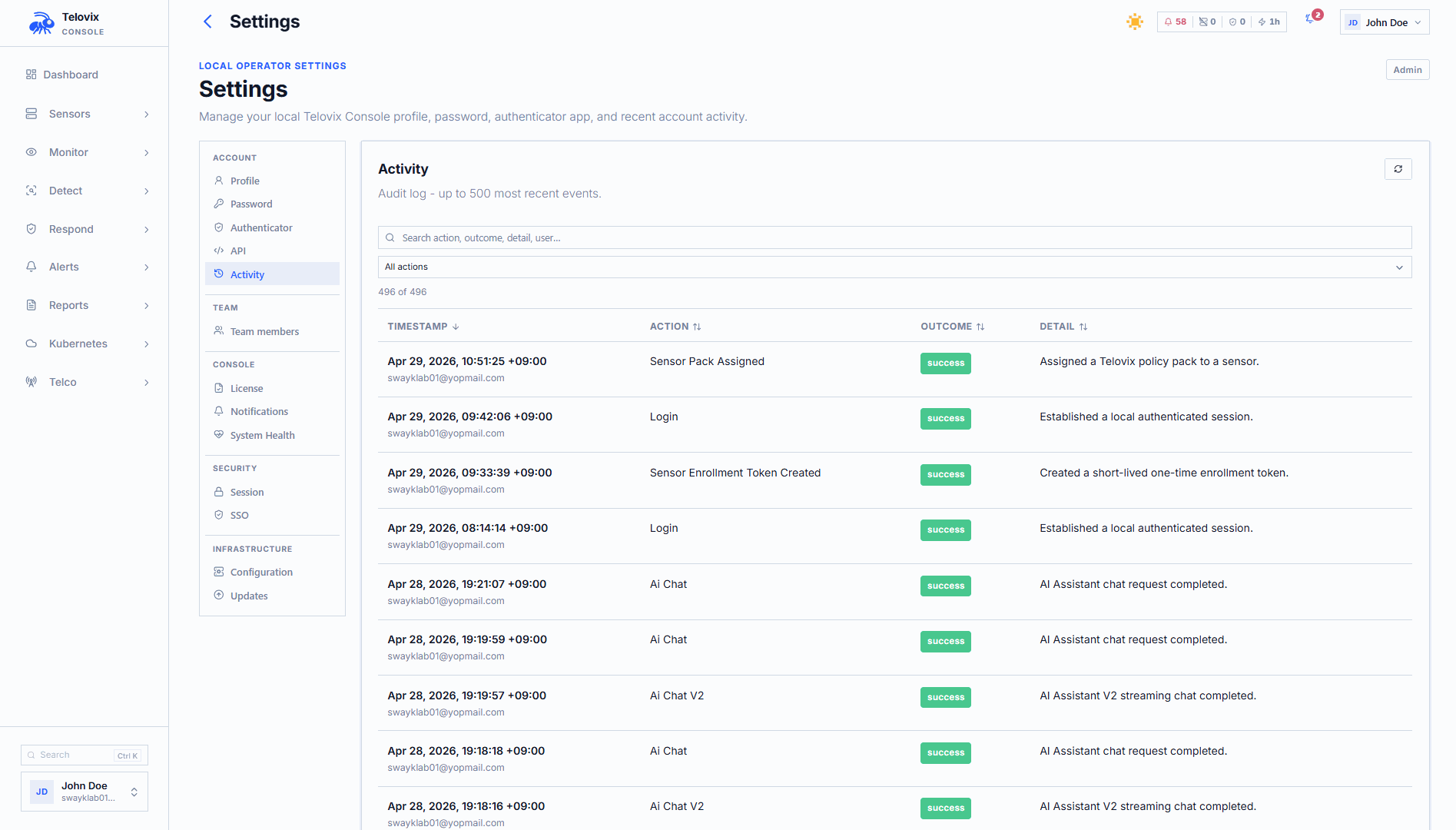
Read a record
Review the time, action, actor, target, and outcome. Open available details for client information and supporting metadata.
| Outcome | Interpretation |
|---|---|
| Success | The recorded action completed successfully. |
| Failure | The action failed; read the detail before retrying. |
| Partial | Only part of the requested action completed. Review affected targets. |
An empty actor email does not necessarily mean an automated action. Older records or service-account activity may lack a personal email. Use the available actor identity and attribution details.
Audit metadata is a summary, not a complete copy of every request or policy. A recorded administrative success also does not prove that every offline sensor has received a later change.
Useful categories
Use categories to focus on the work under review:
- Authentication, users, and access changes.
- Sensor lifecycle, groups, and trust.
- Runtime security and API security.
- Investigations and AI assistant activity.
- Notifications and integrations.
- Upgrades and telecom capture.
- License changes and other administrative activity.
Historical records can include Policy Pack assignments. These remain evidence of earlier changes; they do not indicate that the retired assignment screen is still available.
Export records
- Apply the required filters.
- Select Export CSV.
- Check whether the Console reports that the export was truncated.
The export includes up to 10,000 matching records, not only the current page. Narrow the time range or filters and export additional windows when necessary.
Exported fields include action time, type, outcome, actor, sensor, detail, client information, record identity, category, and available attribution metadata.
Keep exports in a location appropriate for your organization's access and retention requirements.
Investigation examples
Unexpected enforcement change
Filter to Runtime security, the sensor, and the relevant time window. Inspect policy creation, edit, enable, or disable activity. Compare the requested change with sensor delivery confirmation.
Unexpected service-account activity
Search for the API-key identity or related action. Review creation, use, and revocation records where available. Changing the creator's account does not substitute for revoking an independent integration key.
Notification changes
Filter to Notifications and review destination or routing changes around the missed or unexpected notification. Then check the notification delivery log for the result at the provider.
Coverage and retention
Audit records are available only for activity that the Console recorded and still retains. An empty search is not proof that no action occurred.
For reviews that need longer retention, export the relevant records before they expire. Data-lake sensor archives are not a substitute for exporting administrative audit evidence.