
Investigations
Investigations are the case management layer of the Console. Each investigation is a named case with a severity, status, timeline of linked events, and operator notes. They let teams track what happened, record decisions, and build an audit trail that outlasts the original incident response shift.
Investigation status lifecycle
| Status | Meaning |
|---|---|
open | Active case, not yet assigned |
in_progress | Being actively worked |
closed | Resolved and documented |
archived | Closed and moved out of the active view |
Creating an investigation
In the Console, navigate to Monitor > Investigate and open Investigations. Click New Investigation, enter the title, optional description, and severity, then save.
Fields:
| Field | Required | Default | Description |
|---|---|---|---|
title | Yes | Case title | |
description | No | Free-text description | |
severity | No | medium | low, medium, high, or critical |
initial_event | No | An event object to attach at creation time |
Case IDs use the format case_ followed by 16 hex characters.
Updating an investigation
In the Console, open the investigation in Investigations. The header area shows editable fields for title, status, severity, and tags. Any of these can be updated independently. Click the field to edit it inline or use the Edit button.
Attaching events
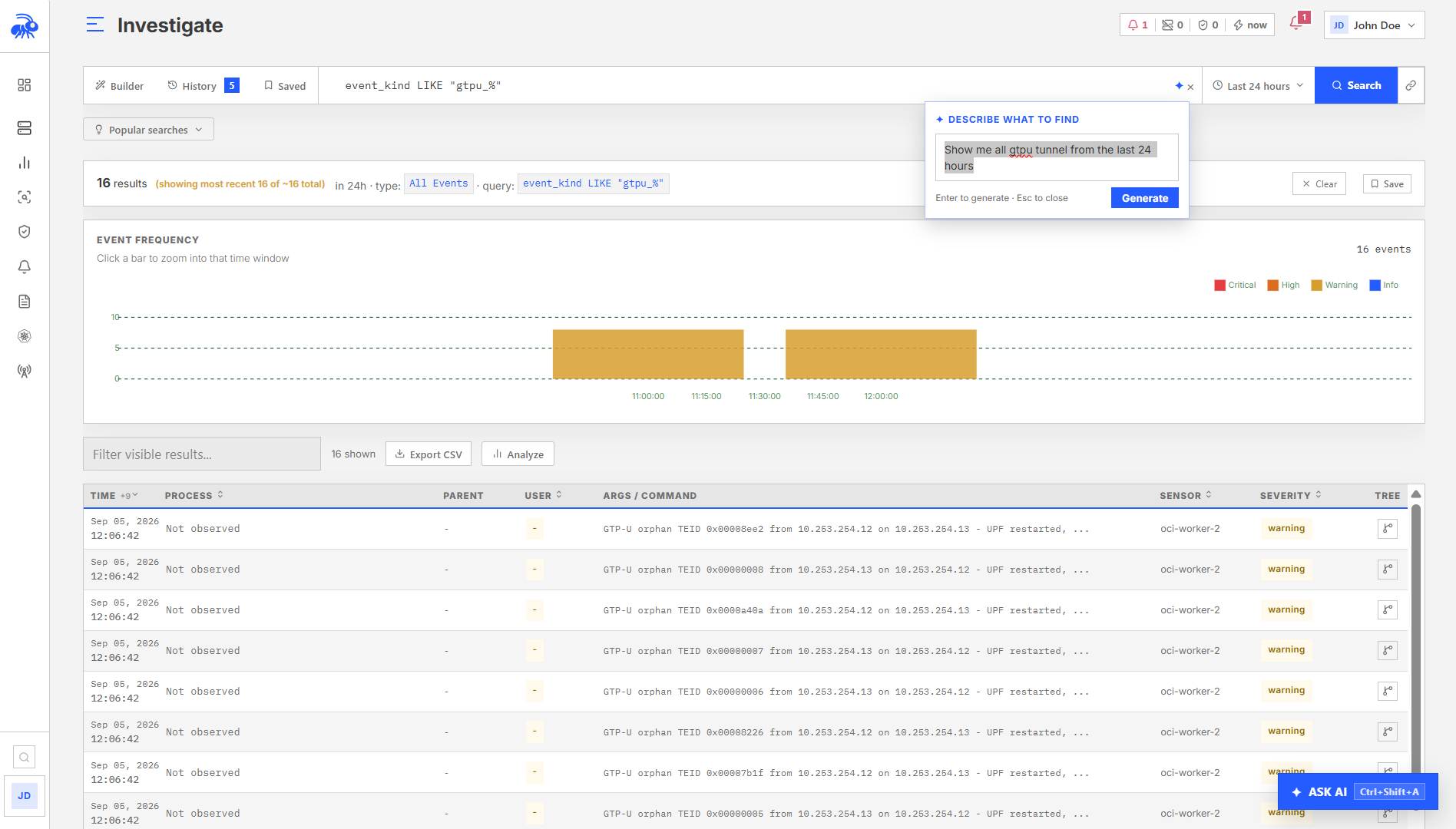
Events are stored as snapshots at the time they are linked. The snapshot captures the key fields from the original event plus an optional analyst context note.
In the Console, open an event in Investigate and click Link to Investigation. Select an existing investigation or create a new one. Optionally add an analyst_context note to explain why the event is relevant. The note is stored with the snapshot and appears in the investigation timeline.
Captured snapshot fields: event_id, event_kind, severity, observed_at, process_executable, message, node_name, sensor_id, dns_hostname, uid, args, bookmarked_at.
Captured snapshot fields: event_id, event_kind, severity, observed_at, process_executable, message, node_name, sensor_id, dns_hostname, uid, args, bookmarked_at.
Adding notes
Notes are timestamped and attributed to the operator who added them (display name or email).
In the Console, open the investigation in Investigations and scroll to the Notes thread. Click Add Note, type the note text, and submit. Note IDs use the format note_ followed by 12 hex characters.
How investigations are created automatically
In addition to manual creation, investigations can be opened automatically through several paths:
From alert rules (auto-correlation)
When an alert rule has auto_correlate: true, the Console automatically opens an investigation for the rule's first alert on a given sensor and links subsequent alerts from the same rule within the correlation_window_secs window. See Alert Inbox and Triage for configuration.
From an anomaly score
Clicking Investigate on an anomaly score in Behavioral Analytics creates an investigation with the binary name and event kind as the title, plus the anomaly reasons and MITRE techniques as the initial evidence.
From a runtime detection match
A custom runtime detection rule can create an investigation when its configured response includes investigation creation. Review the rule in Detect > Runtime Detection > Custom Rules. The investigation identifies the matching rule and process.
From an AI chat session
An AI chat session can be exported to an investigation. The first user message in the session becomes the investigation title. Each AI assistant response becomes a note attributed to "Telovix AI Assistant". Only the session owner can export their session.
In the Console, open a chat session in the AI Assistant panel and click Export to Investigation.
Investigation detail view
Opening an investigation in the Console shows:
- Status, severity, assignee, and tags
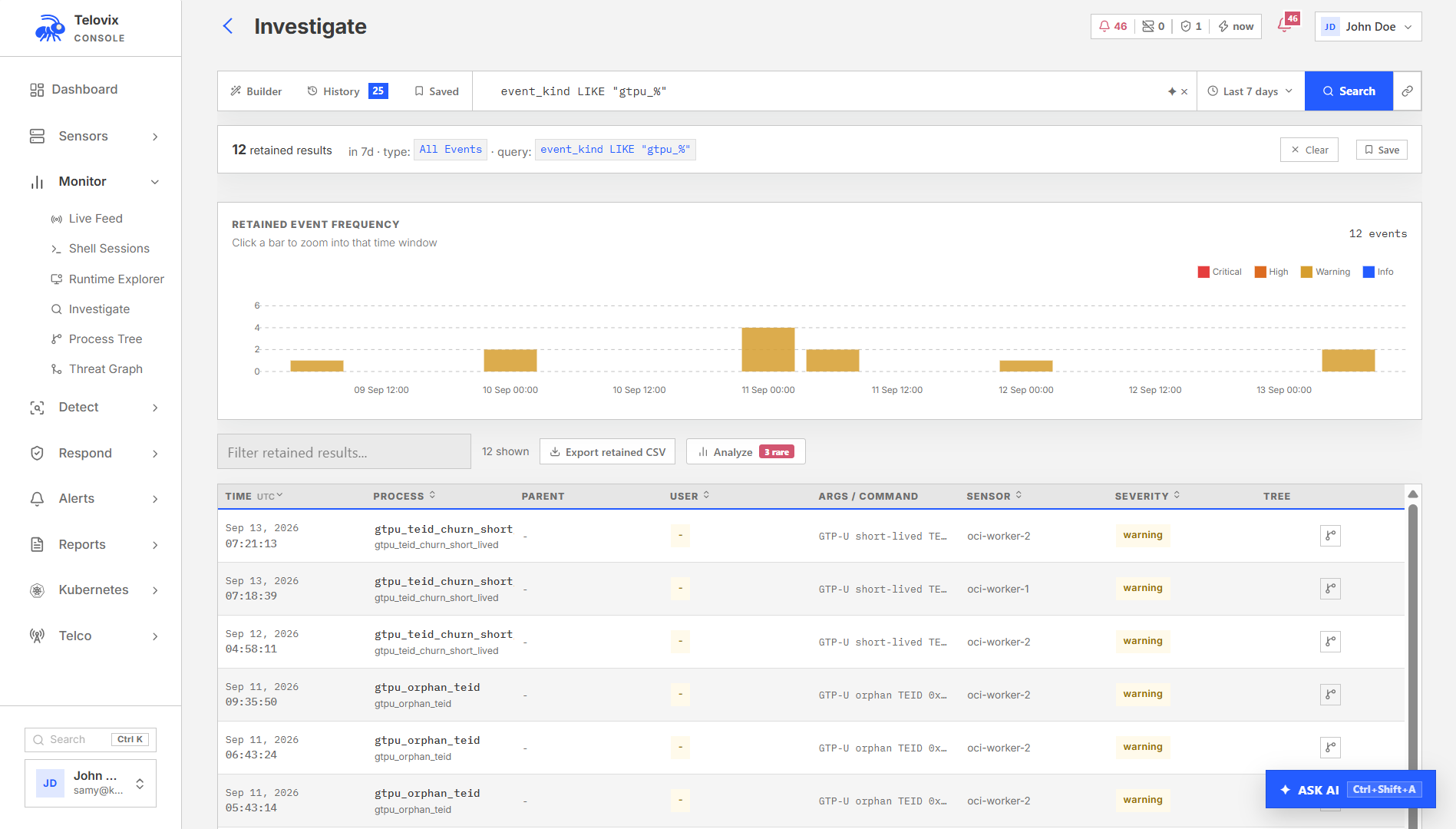
- Event timeline with linked event snapshots and analyst context
- Notes thread in chronological order
- Linked alerts (if auto-correlated)
Closing and archiving
Set status to closed when the investigation is fully resolved and documented. Set to archived to move it out of the active investigations list without deleting it.
Deleting an investigation is permanent and removes the case record, all linked event snapshots, and all notes.