

Appearance
Email Alerts
The Console sends email notifications for alert rules, trust events, and daily digests. All outbound email uses an SMTP connection configured in Console settings. Without SMTP configured, email delivery does not function and the test endpoint returns a configuration error.
Prerequisites
adminrole- SMTP server credentials and hostname available
- Outbound access from Console host to SMTP server
SMTP configuration
SMTP settings are configured through Console Settings. Changes take effect immediately without a restart.
Updating SMTP settings
In the Console, go to Settings > Notifications > SMTP and fill in the connection fields. The Console presents these fields:
| Field | Description |
|---|---|
server | SMTP hostname (e.g. smtp.example.com) |
port | SMTP port (typically 587 for STARTTLS, 465 for SMTPS) |
username | SMTP authentication username |
password | SMTP authentication password |
from_address | Sender email address |
from_name | Sender display name (e.g. Telovix Console) |
starttls | Enable STARTTLS (recommended for port 587) |
ssl_tls | Enable SSL/TLS (for port 465) |
Testing SMTP
In the Console, go to Settings > Notifications > SMTP and click Send Test Email. The Console sends a test email to the configured from_address and reports delivery success or an error message. Confirm delivery before creating email destinations that feed operational workflows.
Alert email destinations
Alert email destinations receive email notifications when alert rules fire. Each destination has its own address, severity threshold, and suppression window.
Create a destination
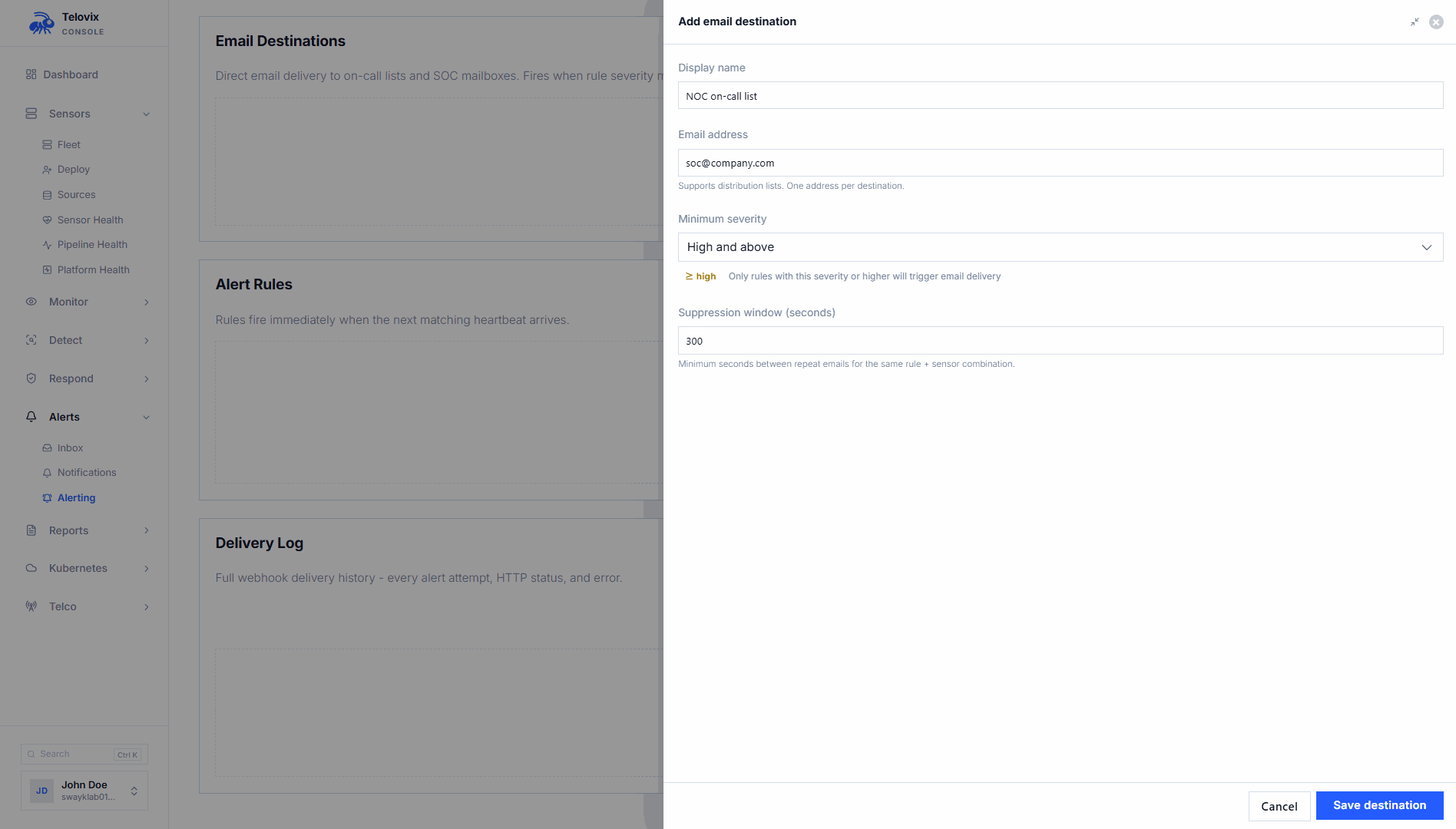
In the Console, go to Settings > Notifications > Email Destinations and click Add Destination. The Console presents these fields:
| Field | Required | Description |
|---|---|---|
display_name | Yes | Human-readable label for this destination |
to_address | Yes | Recipient email address |
severity_threshold | No | Minimum severity to send: critical, high, medium, low, or informational (default: high) |
suppression_window_secs | No | Seconds to suppress repeated deliveries for the same alert condition (default: 300, minimum: 0) |
List, enable, disable, and delete destinations
In the Console, go to Settings > Notifications > Email Destinations. Each destination row shows its current enabled/disabled state and provides actions to enable, disable, test, or delete the destination.
Test a destination
In the Console, go to Settings > Notifications > Email Destinations, click the destination row, then click Send Test. The Console sends a test alert email to the destination's address and shows the delivery result. Requires SMTP to be configured.
Suppression window
The suppression_window_secs field controls how long the Console waits before sending another email to the same destination for the same alert condition. The default is 300 seconds (5 minutes). Set it to 0 to disable suppression (all matching events generate an email).
A global notification suppression window is also enforced by the Console background delivery loop. The fleet-wide suppression window defaults to 4 hours and is configurable in Console Settings.
Notification delivery loop
The run_notification_delivery_loop background task polls for pending alert notifications every 60 seconds. On each cycle it dispatches queued notifications to configured email destinations. If SMTP is not configured, queued notifications are not delivered until SMTP becomes available.
Daily digest
The daily digest is an opt-in per-user email summary of the previous 24 hours. The digest loop polls every 30 minutes and fires once per day between 06:00 and 07:00 UTC.
The digest email includes:
- Critical alert count
- High alert count
- Anomaly spike count
- Attack chains opened
- Attack chains closed
- Sensors offline count
Opting in or out
In the Console, click your user avatar in the top-right corner and go to Profile > Notifications. Toggle Daily Digest Email on or off. Any user role can do this.
The digest is sent only to users who have opted in and only when SMTP is configured. If no subscribers are opted in, the loop skips the send.
Compliance and report emails
Scheduled compliance reports can be emailed to a list of recipients. This is configured separately from alert email destinations via the report scheduling settings. See Compliance for details on report schedules.
Individual reports can also be emailed on demand from Compliance > [report] > Email Report. Enter the recipient address and click Send.
Operational guidance
Configure SMTP before creating email destinations: Creating email destinations without configuring SMTP stores the configuration but deliveries will fail silently. Always verify SMTP is working with the test button before wiring destinations to operational workflows.
Severity threshold and volume: Using severity_threshold: "informational" sends email for every event kind that triggers the notification system. Start with high or critical and widen only when you have confirmed the volume is manageable.
Suppression and missed alerts: The suppression window prevents repeat emails for the same condition but does not drop alerts. Alerts that are suppressed for email delivery still appear in the Console alert inbox. Use the suppression window to control noise rather than as a filter.
TLS settings: starttls: true with ssl_tls: false is the recommended default for port 587 (submission). Use ssl_tls: true with starttls: false for port 465 (SMTPS). Do not set both to true simultaneously.
SMTP settings applied immediately: Settings written in Settings > Notifications > SMTP update the live mailer configuration without a restart. If you are rotating SMTP credentials, you can apply the new password mid-operation without downtime.