

Appearance
Fleet Management
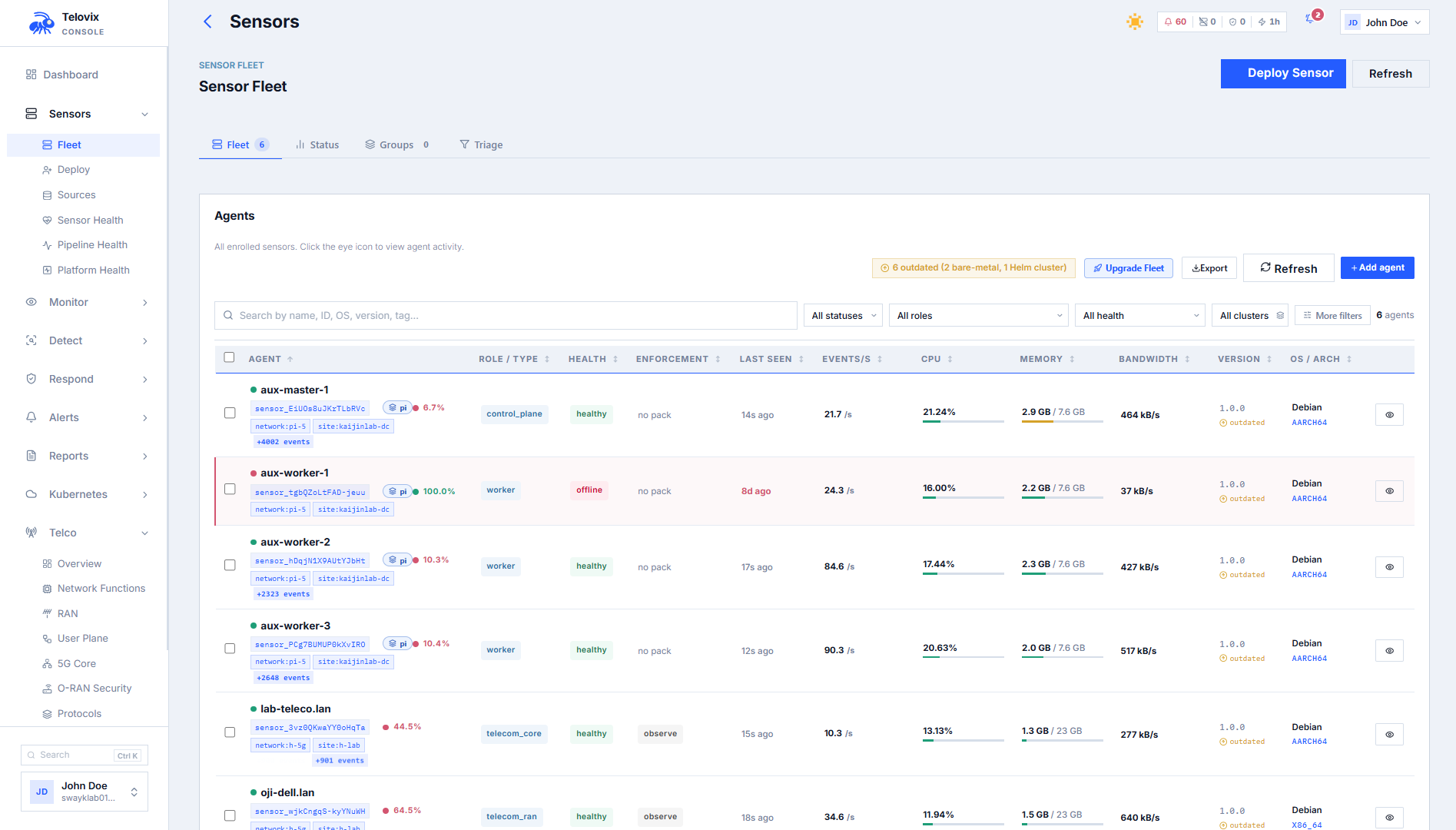
The Sensors page shows every enrolled sensor with enough context to act without leaving the Console. Each row includes node name, declared role, flavor, health state, trust state, last heartbeat, software version, assigned policy pack, and enforcement state. Sensors is the starting point for rollouts, incident scoping, and certificate lifecycle work.
Fleet status and health
The Telovix Console fleet response includes two summary structures:
SensorStateCounts (lifecycle status):
| Status | Meaning |
|---|---|
healthy | Sensor is sending heartbeats on schedule |
stale | No heartbeat within the stale threshold (default 90 seconds) |
disabled | Operator-disabled |
revoked | Sensor identity revoked |
FleetHealthSummary (computed health):
| Health state | Meaning |
|---|---|
healthy | No issues |
watch | Non-critical signals (certificate renewal recommended, BPF event loss, resource pressure) |
degraded | Active trust alerts, stale heartbeats, runtime errors, cert renewal due |
critical | Sensor revoked, eBPF engine down, kernel guard failed |
offline | No heartbeat for more than 4x the stale threshold (~6 minutes) |
Revoked sensors are hidden from Sensors by default. To see them, filter by lifecycle_status=revoked.
Filtering and searching
The fleet list accepts these query parameters:
| Parameter | Description |
|---|---|
q | Full-text search on node name |
declared_role | Filter by node role (e.g. amf, o_du, generic_linux) |
cluster | Filter by Kubernetes cluster name |
lifecycle_status | Filter by status: healthy, stale, disabled, revoked |
trust_state | Filter by trust state: trusted, rotated, bootstrap_pending, trust_revoked |
trust_health | Filter by trust health: healthy, renewal_recommended, renewal_due, degraded, revoked |
runtime_mode | Filter by engine runtime mode: live, compatibility, simulated |
runtime_state | Filter by engine state |
enforcement_state | Filter by pack enforcement state: observe, enforce_ready, enforced |
assigned_pack_id | Filter by assigned pack ID |
assigned_pack_presence | assigned or unassigned |
has_active_trust_alert | true or false |
needs_attention_only | true to show only sensors with needs_attention: true |
telecom_protocol_family | Filter by observed telecom protocol family (telecom vertical only) |
tag_filter | Filter by tag value (substring match) |
sort_by | Field to sort by |
sort_order | asc or desc |
page | Page number (1-indexed) |
page_size | Results per page |
In the Console, navigate to Fleet and use the filter bar to combine any of the parameters above. For example, set Role to amf and enable Needs Attention Only to scope to AMF nodes requiring review, or set Cluster to oslo-ran-01 and Status to stale to find unresponsive sensors in that cluster.
Tags
Tags are free-form labels you attach to sensors at enrollment time (set during sensor setup) or update afterward from Sensors > [sensor] > Edit Tags. They appear in Sensors, in alert context, and in compliance evidence.
Limits: maximum 20 tags per sensor; each tag maximum 64 characters.
To update tags, open the sensor's detail page and click Edit Tags. Enter the new tag list and save. The update replaces the entire tag list - clearing the field and saving removes all tags. Tag changes are recorded in the audit log with action type sensor_tags_updated.
Sensor groups
Groups let you manage a named set of sensors as a unit for policy rollout, upgrade targeting, and scope assignment.
Creating groups requires admin role. Rolling out a policy pack to a group requires operator role.
Static groups
In the Console, navigate to Fleet > Groups and click New Group. Enter a display name and optional description. Once the group is created, open it and use Add Sensor to add members by selecting from the enrolled sensor list. To remove a sensor, open the group, find the sensor row, and click Remove.
Dynamic groups
Dynamic groups include sensors that match a set of conditions. The match is evaluated at enrollment time and can be re-applied on demand from the Console.
Supported fields: declared_role, os_name, os_version, architecture, software_version, node_name, tags
Supported operators: equals, not_equals, contains, startswith, endswith
Logic: AND (all conditions must match, default) or OR (any condition matches)
In the Console, navigate to Fleet > Groups, click New Group, and enable Dynamic Group. Add one or more match conditions using the condition builder. Save the group; the Console evaluates the rules immediately and populates members. To re-evaluate all dynamic groups against the current enrolled sensor set, open Fleet > Groups and click Re-evaluate All.
Policy rollout to a group
In the Console, go to Fleet > Groups > [group] > Assign Policy Pack. Select the pack name and version, then confirm. The Console displays per-sensor outcomes: ready, assigned, blocked, or failed. Sensors are blocked from assignment if the pack's target_roles does not include their declared_role.
Sensor detail view
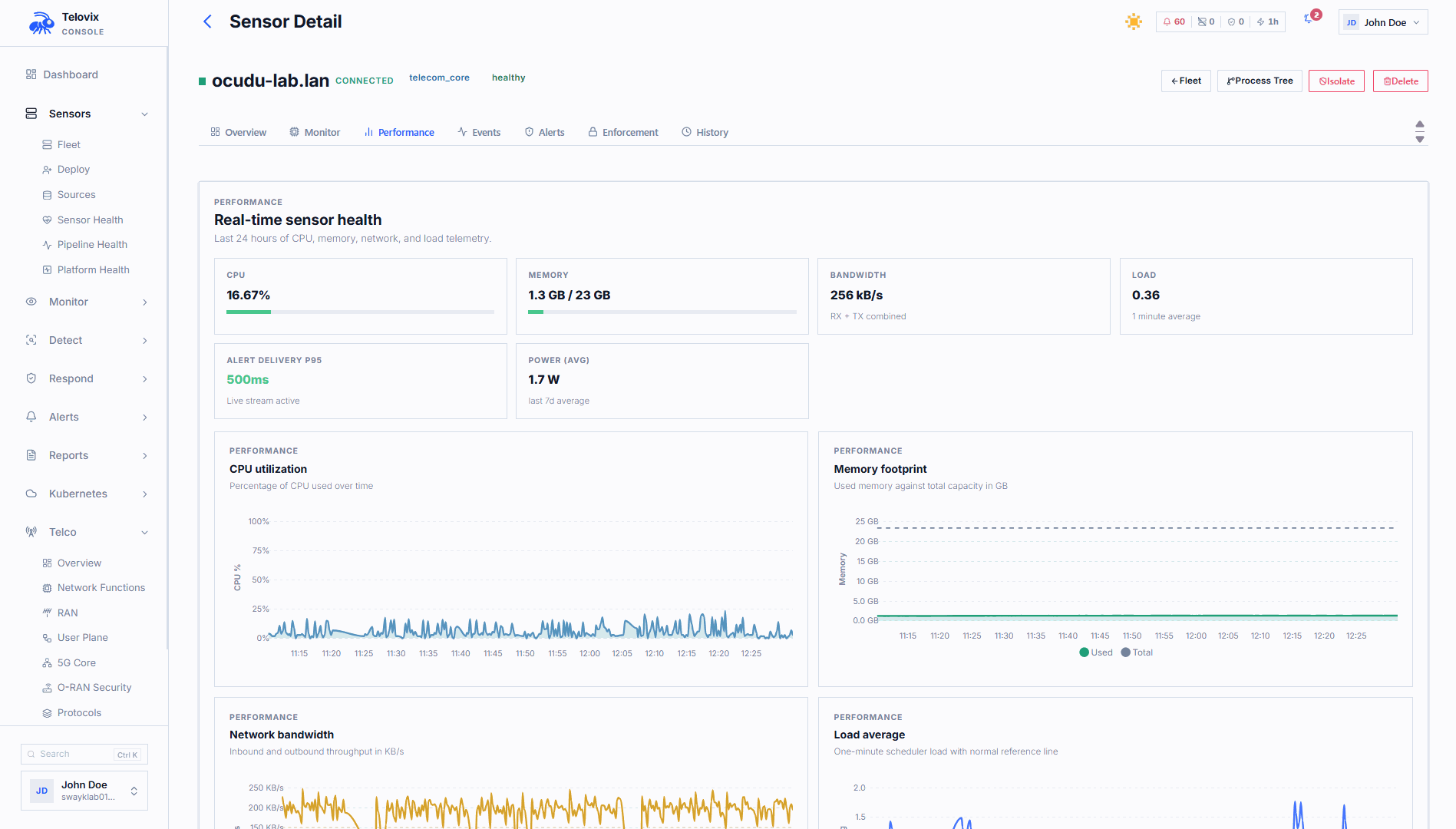
Clicking a sensor in Sensors opens its detail page. The detail view shows:
- Trust state, certificate expiry, and renewal status
- Heartbeat history and event delivery metrics
- Assigned policy pack and enforcement state
- Recent events
- Resource metrics (CPU, memory, disk, network)
- System information (OS, kernel, architecture, IP addresses)
- Active connections and listening services
- Enforcement verification status
- Upgrade plan status
- For telecom sensors: NF inventory, protocol context, SLO status
Sensor actions from the fleet
From Sensors or the sensor detail, operators can perform the following actions:
| Action | Role required | Effect |
|---|---|---|
| Assign policy pack | operator | Push a pack to the sensor via the next heartbeat |
| Set enforcement state | operator | Advance or revert the pack enforcement state |
| Kill process | operator | Queue a SIGKILL for a specific PID (delivered at next heartbeat) |
| Block binary | operator | Create an enforcement rule to kill future executions of a binary |
| Contain sensor | operator | Deploy network-containment enforcement rule |
| Release sensor | operator | Remove network containment |
| Request certificate renewal | operator | Trigger manual cert renewal at next heartbeat |
| Update tags | operator | Replace the sensor's tag list |
| Rename sensor | operator | Update the node display name |
| Disable sensor | admin | Mark sensor as disabled; does not revoke identity |
| Revoke sensor | admin | Permanently revoke mTLS identity; blocks all future requests |
| Delete sensor | admin | Permanently delete the sensor record |
| Generate re-enrollment token | operator | Issue a re-enrollment token to update credentials without creating a new record |
Fleet triage summary
The fleet list response includes a triage_summary object:
| Field | Description |
|---|---|
needs_attention | Count of sensors with needs_attention: true |
active_trust_alerts | Count of sensors with active trust alerts |
assigned_pack_present | Count of sensors with a policy pack assigned |
runtime_mode_counts.live | Count in live (full collection) mode |
runtime_mode_counts.compatibility | Count in compatibility mode |
runtime_mode_counts.simulated | Count in simulated (dev) mode |
Use needs_attention_only=true as a quick filter to focus on sensors that warrant operator review.