

SBOM and Vulnerability Scanner
The Telovix Console scans observed container images for software bill of materials (SBOM) data and known vulnerabilities. Scan results include affected packages, severity, remediation context, deployment exposure, and CycloneDX exports.
Air-gapped deployments: Install the supported scanner package supplied with the Console release. Manual scanner uploads are not supported.
How image discovery works
Sensors report the container images running on their hosts:
- On Kubernetes nodes, images are identified from observed pod and container inventory.
- On non-Kubernetes hosts, images are discovered from the Docker socket.
The Console identifies images by digest when available and avoids unnecessary repeat scans within the configured rescan interval.
Scanner requirements
SBOM scanning requires the managed scanner to be available on the Console host. If it is unavailable, queued scans remain pending until the scanner is restored.
To check scanner status, navigate to Settings > Infrastructure. The SBOM Scanner panel shows availability, version, integrity status, and whether scanning is enabled.
Scan statuses
| Status | Meaning |
|---|---|
pending | Queued and waiting for the next scan cycle |
running | Actively being scanned |
completed | Scan finished; results are available |
failed | The scan failed; open the scan to review the reason and retry it |
Listing scans
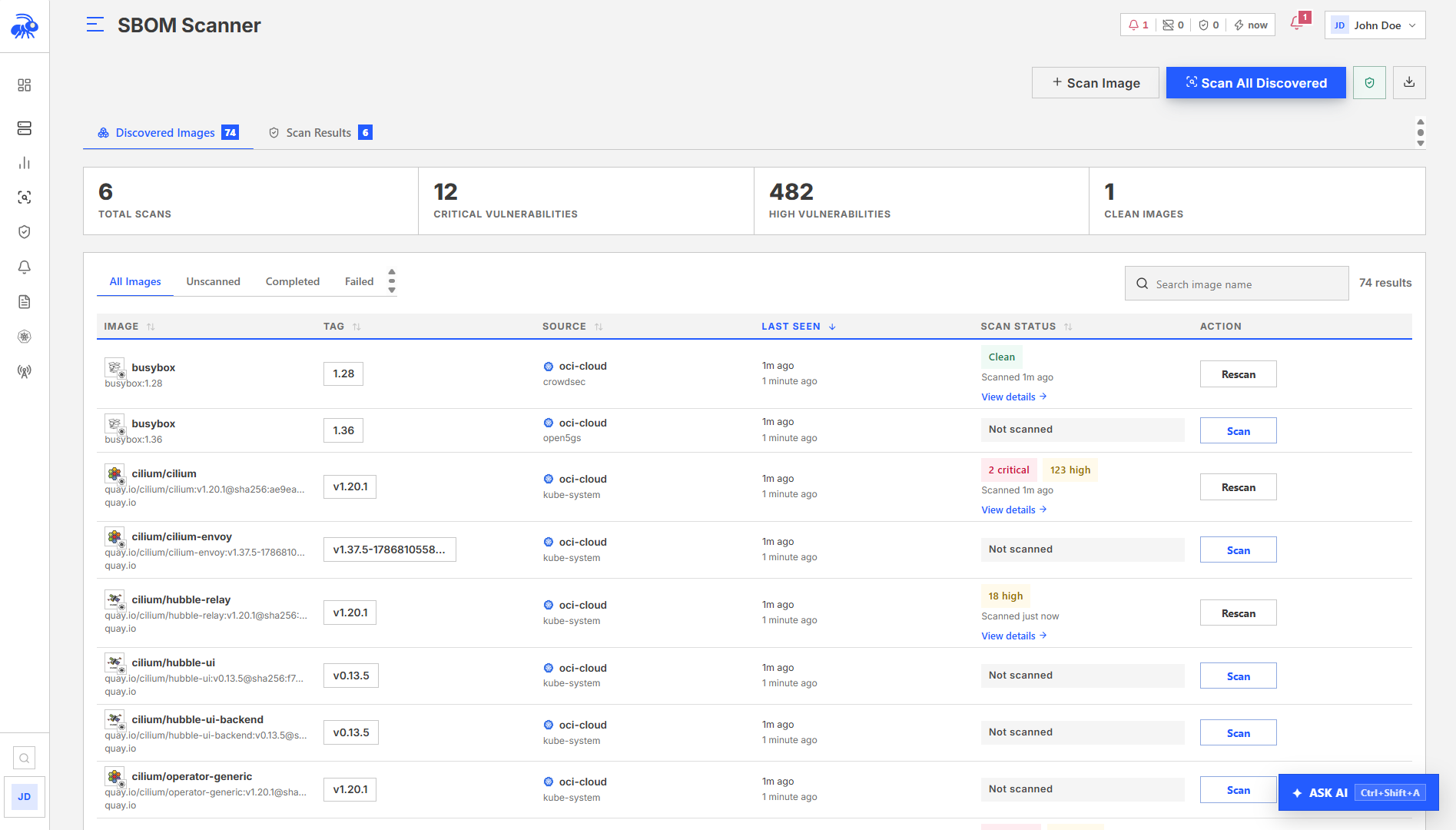
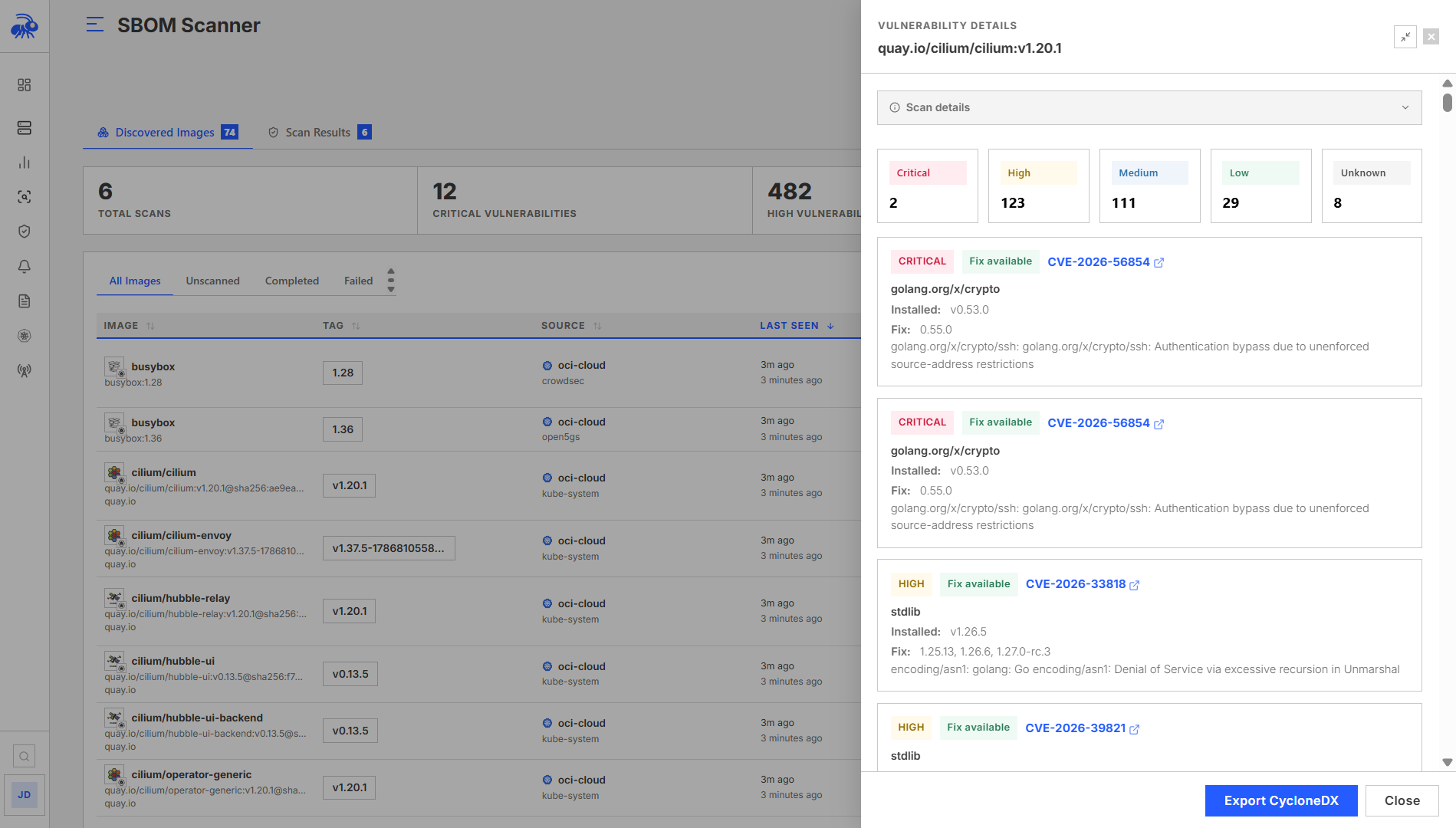
In the Console, navigate to Detect > SBOM Scanner. Use the status, cluster, and image filters to narrow the results. Open a scan to review the image identity, affected deployments, vulnerability summary, packages, timestamps, and any failure reason.
Manually queueing a scan
Requires Admin access.
In Detect > SBOM Scanner, click Scan Image. Enter the image reference and available deployment context, then queue the scan.
Discover and queue all images
Scans known images that have not been scanned within the rescan window. Requires Admin access.
In Detect > SBOM Scanner, open Queue Scan and choose the option to scan remaining observed images. The result reports how many scans were queued and how many images were skipped because they were recently scanned or already in progress.
Retrying a failed scan
Requires Operator or Admin access and applies only to failed scans.
In Detect > SBOM Scanner, filter by Failed, open the scan, and click Retry.
Exporting SBOM data
CycloneDX for a single image
In Detect > SBOM Scanner, open a completed scan and click Download CycloneDX. The export includes the component inventory for that image.
CycloneDX export for all completed scans
In Detect > SBOM Scanner, click Export All CycloneDX to download a combined document for completed scans.
Registry credentials
For images in private registries, store credentials in the Console. They are used to construct a Docker config JSON file that the scanner reads when pulling images.
Stored credentials are not shown again after they are saved.
In the Console, navigate to Settings > Infrastructure > SBOM Scanner - Registry Credentials. Click Add registry, enter the registry URL, username, and password, and save. To verify the credentials work, click Test on the credential row.
Scanner updates
In the Console, navigate to Settings > Infrastructure.
- To check for updates, click Check for Updates.
- To install an available update, click Download & Install.
- For air-gapped environments, install the refreshed Console package that includes the supported scanner.
Proxy support
If the scanner reaches registries through an HTTP or HTTPS proxy, configure the proxy in Settings > Updates.
Scanner settings
The following values are configurable from Console Settings:
- Maximum concurrent scans: maximum parallel scans (default:
2) - Scan timeout: per-scan timeout in seconds (default:
600) - Rescan interval: hours before re-scanning the same image digest (default:
24)
Limitations
- SBOM scanning requires the managed scanner to be available. There is no fallback scanner.
- Container image discovery on non-Kubernetes nodes depends on Docker being reachable on the node's Docker socket. Nodes without Docker will not report images.
- Images in private registries require valid registry credentials before they can be scanned.
- CycloneDX export is available only for completed scans.