

Single Sign-On with OIDC
Telovix supports OpenID Connect single sign-on with:
- Okta
- Microsoft Entra ID
- Google Workspace
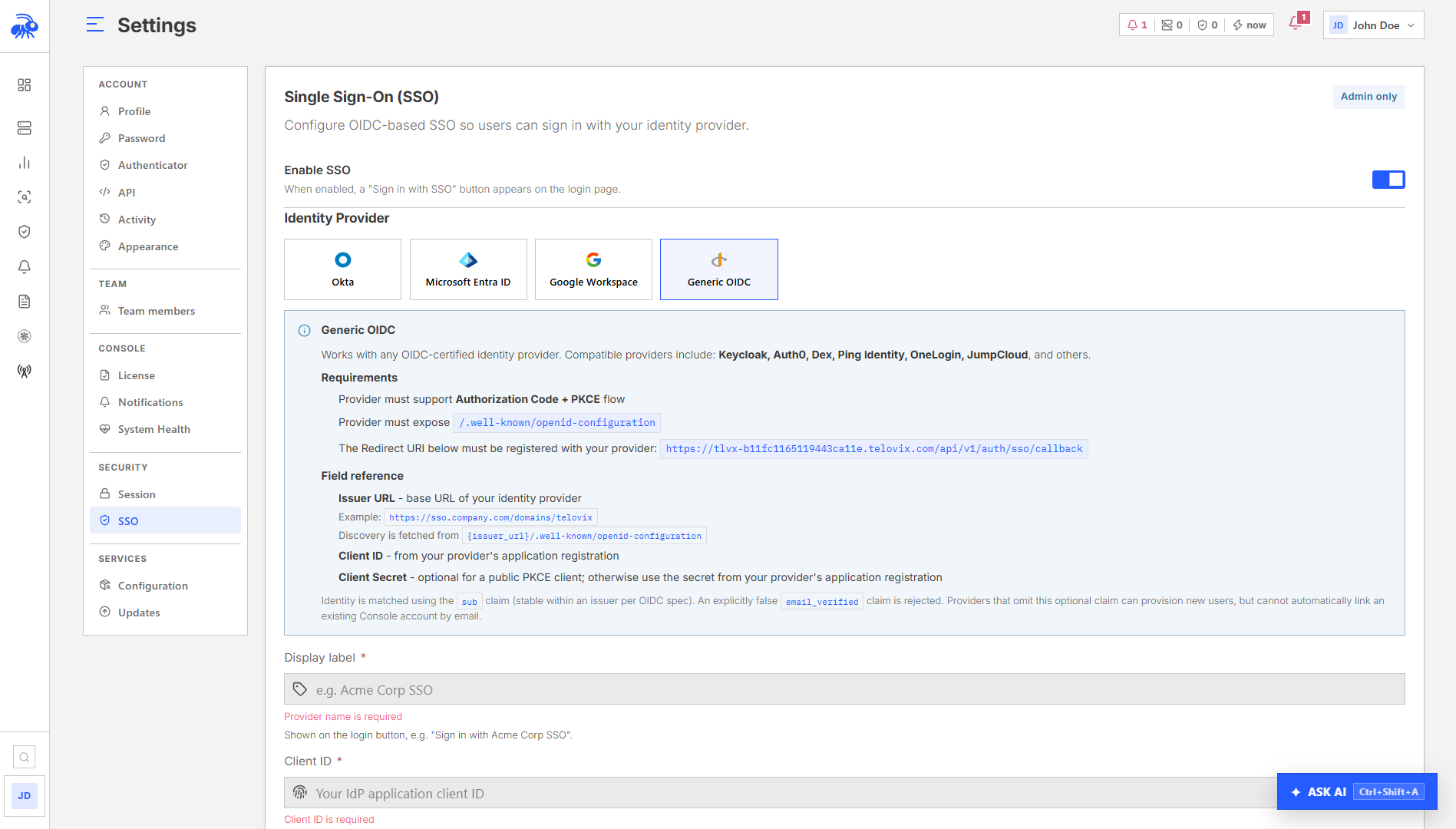
- Generic OIDC providers, including Keycloak, Auth0, Dex, Ping Identity, OneLogin, and JumpCloud
SSO configuration is available to Admin users under Settings > SSO.
Common setup
- Open Settings > SSO.
- Enable SSO.
- Select the identity provider.
- Copy the displayed Redirect URI.
- Register that exact URI as a Web redirect URI in the identity provider.
- Enter a display label, client ID, client secret when required, and issuer information.
- Save the configuration.
- Open the Console login page in a private browser window.
- Select Sign in with SSO and complete a full sign-in.
- In Settings > Team, confirm the new or linked user has the intended role and Kubernetes access.
The Redirect URI must match exactly, including scheme, hostname, path, and trailing slash behavior.
New SSO users are created with the Analyst role. An Admin must promote them when broader access is required.
Okta
- In Okta Admin Console, open Applications > Applications > Create App Integration.
- Select OIDC - OpenID Connect.
- Select Web Application.
- Add the Telovix Redirect URI under Sign-in redirect URIs.
- Assign the application to the users or groups that may access Telovix.
- Copy the Client ID and Client secret into Telovix.
- Set the issuer to your Okta domain, for example:
https://example.okta.comFor a custom authorization server, use its complete issuer URL, for example:
https://example.okta.com/oauth2/defaultUse the issuer shown by the authorization server configuration. Do not enter the authorization endpoint itself.
Microsoft Entra ID
- In Microsoft Entra admin center, open App registrations > New registration.
- For a normal organization deployment, choose accounts in the intended organizational directory only.
- Add the Telovix Redirect URI as a Web redirect URI.
- Copy the Application (client) ID into Telovix.
- Copy the Directory (tenant) ID into Tenant ID.
- Under Certificates and secrets, create a client secret and copy its Value into Telovix.
- Leave implicit grant and hybrid flows disabled.
- Confirm the issuer is the tenant-specific v2.0 issuer:
https://login.microsoftonline.com/{tenant-id}/v2.0For an Entra national cloud, enter the tenant-specific issuer for that cloud. Avoid common, organizations, or consumers; Telovix expects a specific tenant.
Google Workspace
- In Google Cloud Console, select or create the organization project.
- Configure the OAuth consent screen for the intended audience.
- Open APIs and Services > Credentials.
- Create an OAuth client ID with application type Web application.
- Add the Telovix Redirect URI under Authorized redirect URIs.
- Copy the Client ID and Client secret into Telovix.
- Use this issuer:
https://accounts.google.comTo limit sign-in to one Google Workspace organization, set Workspace domain to the domain, such as company.com. Test with an assigned user from that domain and with an account outside the domain.
Generic OIDC
The provider must support:
- OpenID Connect discovery;
- Authorization Code flow with PKCE;
- an ID token signed by a key published by the provider;
- a stable subject identifier;
- an email claim, or a UserInfo endpoint that supplies one.
Enter the exact issuer base URL. Telovix discovers provider endpoints from the issuer's OpenID Connect metadata.
The client secret is optional only when the provider application is configured as a public PKCE client. For a confidential web client, enter the client secret.
If the provider explicitly reports that an email is unverified, sign-in is rejected. If the provider omits email verification, a new account can be created, but it cannot automatically link to an existing Console account by email.
Account linking and roles
On the first successful SSO sign-in:
- an existing local account with the same verified email can be linked to the SSO identity;
- an account already linked to a different SSO provider is rejected as a conflict;
- a new SSO-only account is created as Analyst;
- disabled users remain unable to sign in.
After first sign-in, open Settings > Team to assign the correct role and Kubernetes cluster access.
Do not create two identity-provider accounts that share the same email but represent different people.
SSO, passwords, and MFA
The sign-in behavior depends on how the account was created and which controls are enabled.
| Account configuration | Sign-in experience | Password reset | MFA owner |
|---|---|---|---|
| Local account, no Console MFA | Email and password | Available when email delivery is configured | Not enabled |
| Local account with Console MFA | Email, password, then authenticator code | Available when email delivery is configured | Telovix Console |
| SSO-only account | Identity-provider sign-in | Use the identity provider | Identity provider |
| Existing local account linked to SSO, no Console MFA | Local password or SSO | Local reset remains available | Identity provider for SSO; none for local sign-in |
| Existing local account linked to SSO with Console MFA | Local password or SSO, followed by Console authenticator code | Local reset remains available | Identity provider plus the account's existing Console MFA policy |
SSO-only accounts
SSO-only users do not have a Console password. They cannot use local password login, local password reset, or the Console authenticator setup. Configure password policy, account recovery, and MFA in the identity provider.
Linked local accounts
A linked local account keeps its local password. If Console MFA was already enabled, the user completes the Console authenticator challenge after either local or SSO authentication.
Remember me
Remember me applies to local login and keeps the authenticated Console session for the configured remembered-session period. Completing MFA preserves the choice made at local login. SSO session duration follows the Console and identity-provider session behavior and does not use the local Remember me toggle.
Validation checklist
Before announcing SSO to users, test all applicable paths:
- a new assigned SSO user can sign in and is created as Analyst;
- an unassigned identity-provider user is rejected;
- an existing local user with a verified matching email links successfully;
- a disabled Console user remains blocked;
- Google Workspace domain restriction blocks an outside account, if configured;
- Entra sign-in uses the intended tenant;
- local Admin login still works;
- local MFA succeeds and rejects an invalid code;
- a linked local-plus-SSO account completes Console MFA when enabled;
- SSO-only users cannot use local password reset;
- local password reset works when email delivery is configured;
- sign-out ends the current Console session.
Review Reports > Audit Log after testing to confirm successful and failed authentication events are recorded as expected.
Rotate a client secret
- Create a new secret at the identity provider.
- Enter the new secret in Settings > SSO and save.
- Complete a sign-in test in a private browser window.
- Revoke the previous secret at the identity provider.
Leaving the Client Secret field blank keeps the saved secret. Generic OIDC also offers an explicit option to remove a saved secret when switching to a public PKCE client.
Troubleshooting
| Symptom | Check |
|---|---|
| Redirect URI mismatch | Compare the provider registration with the read-only Redirect URI shown by Telovix, character for character. |
| Provider metadata cannot be loaded | Verify the issuer URL is exact, reachable from the Console, and publishes OpenID Connect metadata. |
| Entra sign-in is rejected | Confirm the tenant ID, tenant-specific v2.0 issuer, client secret value, and app assignment. |
| Google user is rejected | Confirm OAuth audience, Workspace domain, account domain, and authorized redirect URI. |
| Existing account cannot be linked | Confirm the provider returns a verified matching email and the account is not linked to another provider. |
| User signs in but has limited access | New SSO users start as Analyst. Assign the required role and cluster access in Settings > Team. |
| SSO user cannot reset a password | SSO-only password recovery is handled by the identity provider. |
| Authenticator setup is unavailable | SSO-only MFA is managed by the identity provider. |
| Sign-in returns to the login page | Check Console public URL, HTTPS termination, provider assignment, issuer, and the authentication event in Audit Log. |