

Live Feed, Process Tree, and Investigate
These views support different stages of runtime investigation:
| View | Best for |
|---|---|
| Live Feed | Watching new runtime activity and pivoting immediately from an event. |
| Investigate | Searching historical evidence with structured conditions and a controlled time range. |
| Process Tree | Understanding live or recent process ancestry, scripts, children, files, network activity, and actions. |
| Shell Sessions | Reviewing interactive shells and the commands observed within each session. |
Open each page under Monitor.
Live Feed
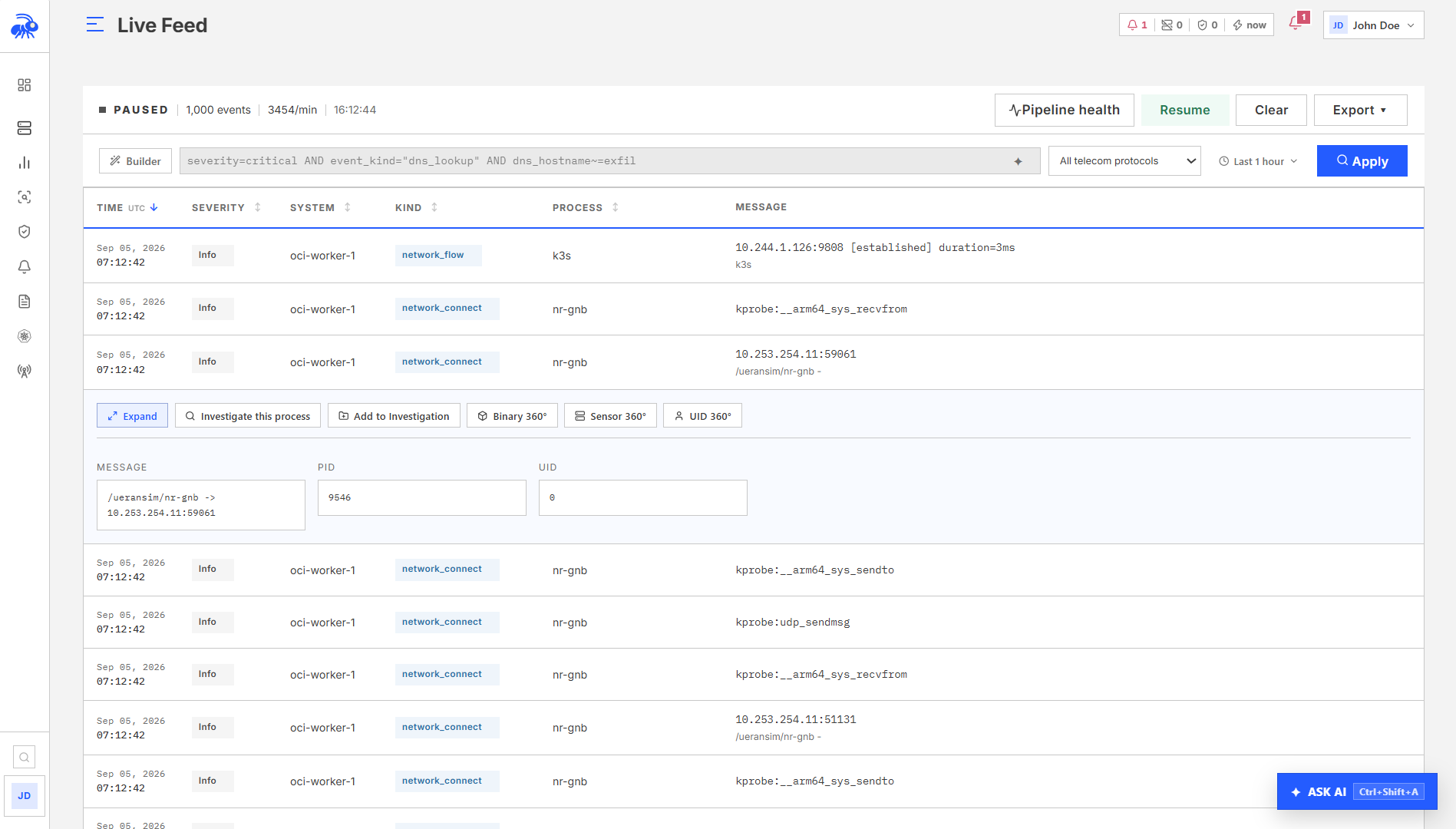
Live Feed shows new events from enrolled sensors. Use sensor, severity, event kind, and text filters to keep the stream relevant. In telecom deployments, use the protocol filter to follow decoded protocol events without entering internal event names.
Work at high event rates
- Select a sensor or narrow event kinds before investigating a busy fleet.
- Use Pause when you need to inspect an event without the list moving.
- If new events are waiting, return to the top or select Resume.
- When the high-rate banner appears, the visible list is intentionally bounded. Events can still be searched in Investigate.
- Complex conditions that cannot be applied to the live stream are identified before you rely on them. Open the same query in Investigate for full historical filtering.
Select an event to open its details. Use Investigate this process or another evidence pivot to carry the event identity, sensor, and relevant time window into Investigate.
Live versus history
Changing to a historical or custom time range loads stored evidence. Returning to live mode resumes the stream. A newly selected range replaces the previous result set; stale results from an earlier selection are not mixed into the current view.
Investigate
Investigate searches historical runtime evidence. Start with a time range and scope, then add conditions for the entity you know: process path, parent process, event kind, sensor, node, user, IP address, DNS hostname, Kubernetes workload, network function role, or severity.
In telecom deployments, Telecom Searches provides protocol filters and investigation shortcuts. Select a protocol to search its recorded events. For current interface or session summaries, open Telco > Network or Telco > Sessions instead.
Search progress and more results
Results appear progressively as the selected range is searched. Scroll through the results to load more, or select Continue when offered.
- Stop pauses further loading while keeping the results already shown.
- Continue resumes the same search from its progress point.
- Retry retries a failed request. A failure is not a report of zero matching events.
- Requested range searched confirms that the search has finished for the selected range. While a search is still running, more matches may appear.
Charts, counts, and Export retained CSV describe the results retained in the view, not every event that could match in storage. Narrow the scope to keep a focused set for review or export. Run the search again to include events that arrived after it started.
Recommended workflow
- Set the narrowest practical time range.
- Select a sensor, cluster, host, or other known scope.
- Add one or two high-confidence conditions.
- Run the search and select the most relevant event.
- Review Summary, ancestry, session, network, file, API, and related finding evidence.
- Pivot from a concrete field instead of broadening the search immediately.
- Link important evidence to an investigation case.
Event details and pivots
The selected event panel loads the exact observation rather than a similar event from the same process. Available pivots include:
- all events from the process or parent process;
- activity by the same user or login session;
- activity on the same sensor;
- DNS evidence for the selected hostname;
- source or destination IP activity;
- network function role activity;
- process ancestry and shell session context.
When a detail request fails or is superseded by another selection, the panel does not reuse evidence from the previous event.
Query guidance
Use the visual query builder for normal investigations. Text searches are bounded; a very broad text hunt across a long period can be slower and less precise than a structured process, sensor, event kind, or network field.
Use supported fields and operators, with AND, OR, and parentheses to combine conditions.
With Describe what to find, include the subject and time range, such as "SSH activity on this host in the last 12 hours." Review both the generated conditions and the applied range. Correct any validation message before running the search.
HTTP evidence
HTTP and TLS-decrypted HTTP observations are searchable alongside runtime events. Open an observation to inspect its captured request and response. Body access requires Admin or Operator permission.
A captured request does not guarantee a paired response or a complete body. Check the observation time, direction, and truncation or capture status. Endpoint counts include observations that may contain metadata only.
Process Tree
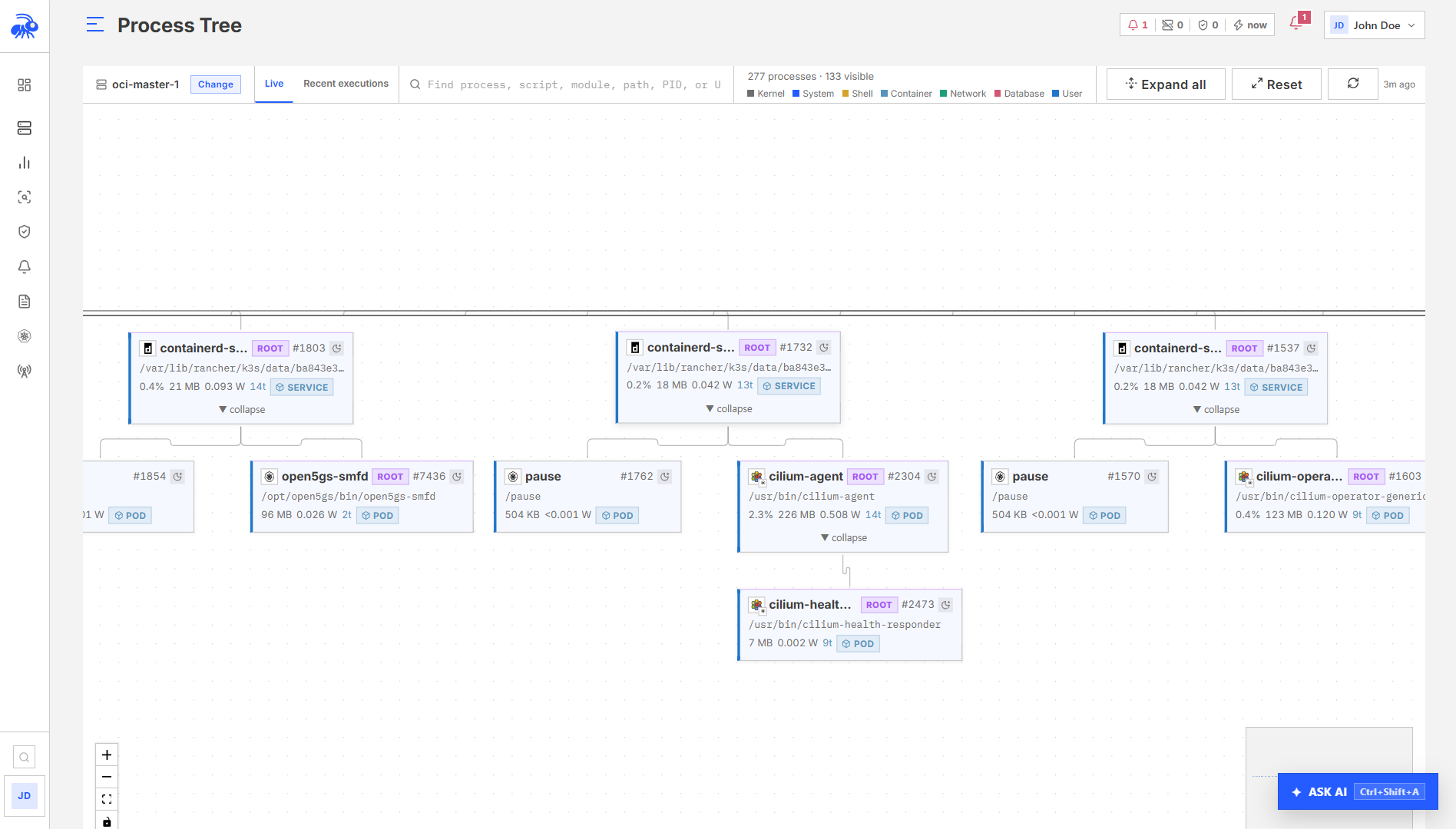
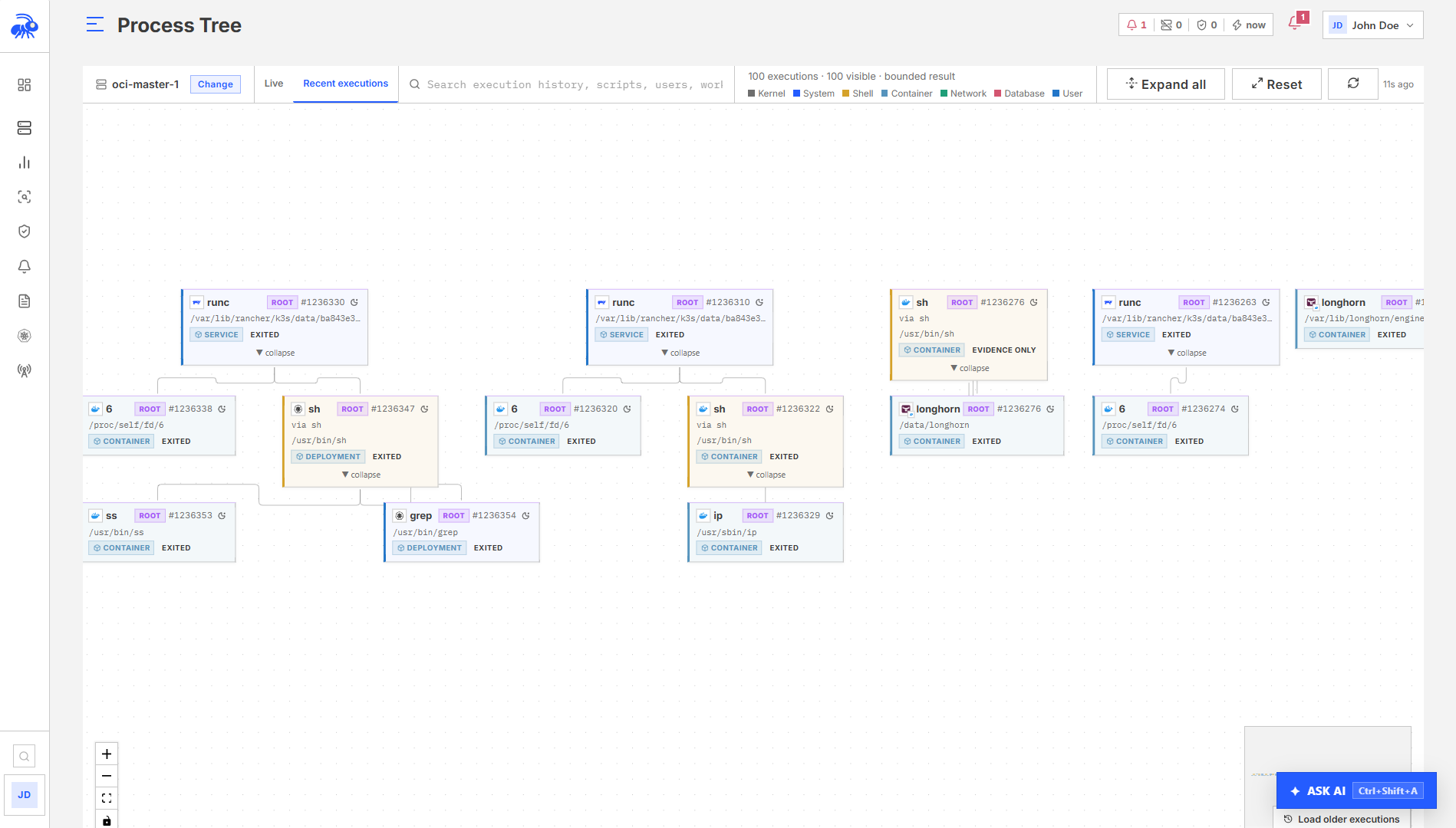
Process Tree presents process lineage for a selected sensor. Live shows the current process state. Recent Executions finds short-lived and historical executions that may no longer be running.
Search for scripts
Search includes executable path, script name or path, module, command arguments, PID, user, container, pod, workload, and sensor identity.
For an interpreted script, the script or module is shown as the primary name and the interpreter as context. For example, attack.sh via bash keeps the script separate from /bin/bash.
Use Recent Executions when a script completed before the live process view refreshed. Historical results are marked as no longer running and cannot be mistaken for a live process.
The tree does not claim that piped input, an inline command, or a sourced file is a separately executed process unless execution evidence exists.
Evidence panel
Select a process to open the standard expandable panel:
| Tab | What it shows |
|---|---|
| Summary | Process, script or module, command, identity, user, sensor, workload, and state. |
| Lineage | Observed parent, ancestors, and children, with fallback evidence labelled where necessary. |
| Evidence | Related files, API activity, credentials, alerts, and runtime observations. |
| Network | Connections and DNS activity attributed to the process. |
| Actions | Available runtime actions for the verified live process instance. |
The selected process and panel tab remain open across refreshes while the same process instance is available. A new process that reuses its PID is not treated as the previous selection.
Runtime actions
Actions are available only to authorized users and only when Telovix can verify that the selected process is still the same running instance. Actions are disabled for exited, stale, historical, or identity-incomplete evidence.
For an interpreted script, Telovix does not default to blocking Bash, Python, Node, or another general-purpose interpreter. Review the exact target shown in the confirmation dialog. If the selected script cannot be targeted reliably, script blocking is shown as unavailable.
Shell Sessions
Shell Sessions groups observed interactive shells with their child commands, user, sensor, start time, last activity, and risk indicators.
Use server-side search to find a shell, host, command, path, PID, or user across the selected history. Filter by risk, session type, or sensor, and use Load more sessions for additional pages.
Select a session to review its invocation and command timeline. Use Investigate on the session or an individual command to carry the correct sensor and time context into a historical search.
A session marked active reflects current evidence at the displayed observation time. Check the last-seen time before treating it as a live interactive connection.
Example: SSH to script execution
To investigate a suspected SSH intrusion:
- Open Monitor > Shell Sessions and search for the host, user, command, or script name.
- Open the session and identify the suspicious command.
- Pivot the command to Investigate.
- Open the exact execution and review its ancestry for
sshd -> shell -> script -> childevidence. - Open Monitor > Process Tree for the Sensor if the process is still running.
- Review Network, DNS, file, API, and alert evidence before taking action.
- Link the relevant events to an investigation case.
Missing ancestors remain missing. Telovix does not connect unrelated processes solely because a PID was reused.
Troubleshooting
| Symptom | Check |
|---|---|
| Live Feed stops moving | Check whether it is paused, whether new events are waiting, and whether the ingest banner offers Resume. |
| A live filter is ignored | Review the unsupported-condition warning and run the query in Investigate. |
| Investigate returns no events | Clear conflicting filters, confirm the sensor and time range, then begin with one structured condition. |
| A script is not in the live tree | Search Recent Executions; the script may have already exited. |
| A shell session takes time to load | Narrow the time range or use database search for a host, command, or sensor. |
| An action is unavailable | Confirm the process is live, identity is complete, your role permits the action, and the intended target is not only a script interpreter. |