

License Validation (Offline, Telovix self-hosted)
Telovix self-hosted deployments require a signed license bundle imported into the Console. The Console validates this bundle offline using an embedded Ed25519 public key. No Telovix services connection is needed at validation time, during operation, or at sensor enrollment. Air-gapped deployments are fully supported.
For Telovix Cloud deployments, the license is injected automatically during Console provisioning. (Telovix Cloud only) Operators in that model never download, import, or manage a license file.
Prerequisites
- Telovix self-hosted Console already installed
- Signed license bundle downloaded from the Telovix Portal
adminrole to import the license
License bundle structure
A license bundle is a JSON file with this structure:
{
  "schema_version": 1,
  "signature_algorithm": "ED25519",
  "payload": {
    "customer_id": "<workspace_id>",
    "workspace_id": "<workspace_id>",
    "license_id": "lic-<uuid>",
    "supersedes_license_id": null,
    "plan": "growth",
    "max_protected_nodes": 250,
    "allowed_roles": ["admin", "manager", "analyst"],
    "support_tier": "priority",
    "valid_from": "2026-01-01T00:00:00Z",
    "valid_until": "2027-01-01T00:00:00Z",
    "grace_until": "2027-01-31T00:00:00Z",
    "issued_at": "2026-01-01T00:00:00Z",
    "console_id": null
  },
  "signature": "<base64-encoded-ed25519-signature>"
}
Payload fields
| Field | Description |
|---|---|
license_id | Unique identifier for this license bundle (format: lic-<uuid>) |
supersedes_license_id | If this is a renewal, the previous license ID it replaces |
plan | Plan name: trial, starter, growth, scale, or custom |
max_protected_nodes | Maximum number of sensors the Console will allow to enroll |
allowed_roles | User roles permitted in this deployment |
support_tier | standard, priority, or professional |
valid_from | License start time (RFC3339) |
valid_until | License expiry time (RFC3339) |
grace_until | Grace period end time; typically valid_until + 30 days |
console_id | If set, the license is bound to a specific Console instance ID |
Signature
The signature field contains a base64-encoded Ed25519 signature over the canonical JSON serialization of the payload object. The Console verifies this signature against the Ed25519 public key embedded in the Console binary at build time.
How the Console validates the license
When a license bundle is imported, the Console:
- Parses the JSON envelope and extracts the
payloadandsignature. - Serializes the payload back to canonical JSON.
- Base64-decodes the signature.
- Verifies the Ed25519 signature against the embedded public key.
- If the signature is valid, stores the license and applies the entitlements.
- If the signature is invalid, rejects the import with an error.
The Telovix Console does not contact Telovix servers during this process. The embedded public key is the only trust anchor. A license bundle from Telovix signed with the matching private key will always validate offline.
What the license governs
Node capacity
The protected-node limit sets the maximum number of enrolled Sensors. When this limit is reached, new Sensor enrollments are blocked. Existing enrolled Sensors continue operating. Review current usage and plan limits from the Console license page.
Validity window and grace period
The license is active from valid_from to valid_until. After valid_until, the Console enters a grace period that lasts until grace_until (typically 30 days after expiry). During the grace period:
- Existing Sensors continue operating normally
- Sensor enrollment and management remain available, subject to the protected-node limit
- The Console displays an expiry warning in the UI
After grace_until, the Console marks the license as expired and blocks Sensor management and ingestion operations that require an active entitlement. Import a renewed bundle to restore service.
Console ID binding
If console_id is set in the payload, the license is bound to that specific Console instance. The Console validates the console_id field against its own configured instance ID. A mismatch causes the license to be rejected even if the signature is valid.
Workspace-level licenses (the common case for Telovix self-hosted deployments) have console_id: null and are not bound to a specific Console instance.
Obtaining a license
From the Portal
- Log in to the Telovix Portal.
- Navigate to your workspace Licenses page.
- Click "Issue new license". Set
valid_days(license duration) andgrace_days(grace period after expiry, default 30). - Download the signed JSON bundle.
The Portal provides a signed JSON license bundle for import into the Console.
For deployment-specific licenses (bound to a console_id), use the deployment license endpoint from the Portal's Deployments section.
Importing a license into the Console
After Console installation and initial setup, import the license bundle using one of two methods.
Via the setup wizard (recommended for initial setup)
The Console setup wizard includes a license import step. Upload the signed .json bundle using the file picker in the wizard. The Console validates the signature and activates the entitlements before the wizard completes.
Via the Console Settings UI
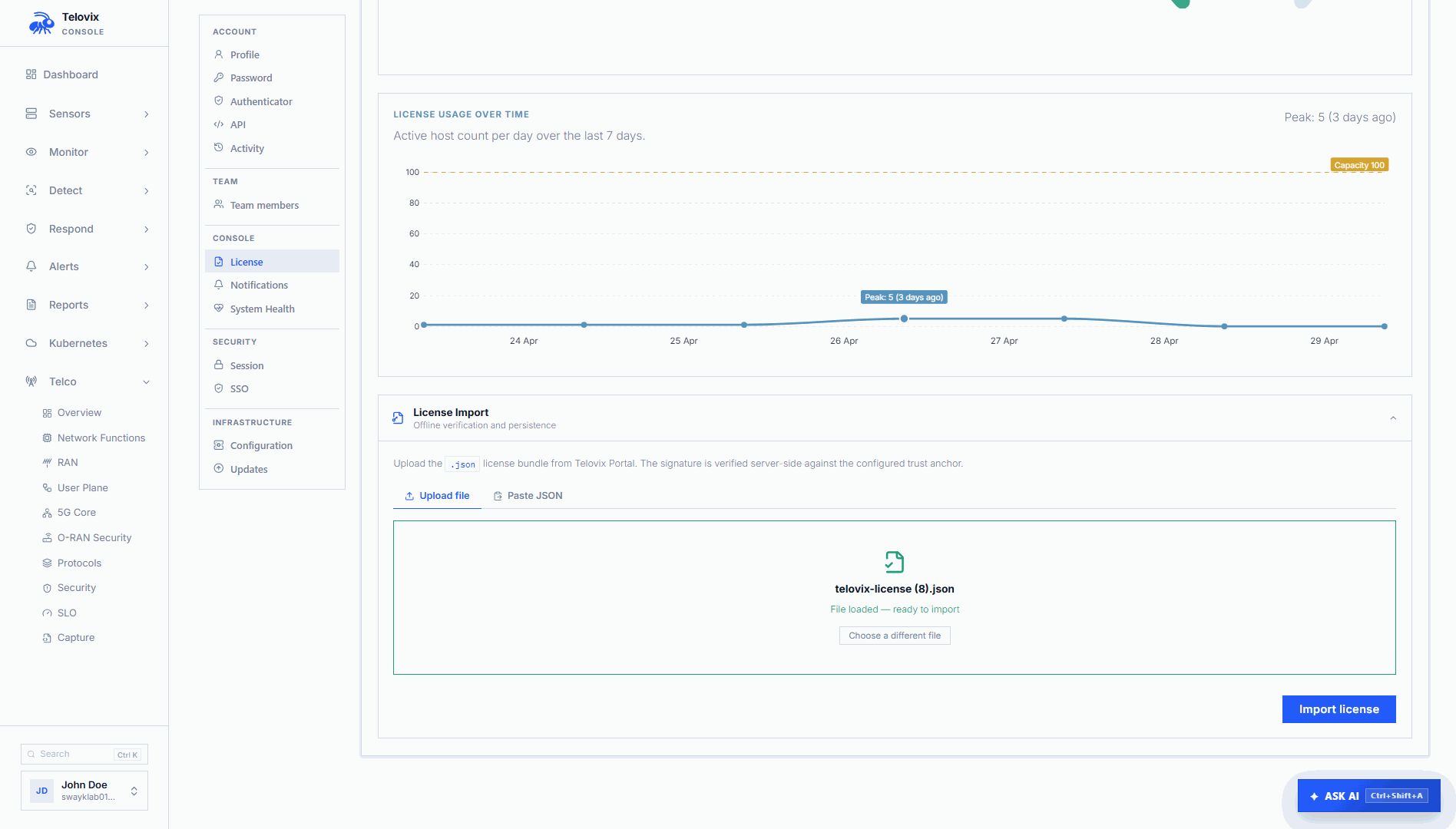
To import a license, navigate to Settings > License in the Console and click Import License Bundle. Select the signed .json bundle from your workstation. The Console validates the signature and activates the entitlements immediately. No restart is needed.
Checking the current license state
In the Console, navigate to Settings > License to see the current plan, node limit, validity window, and lifecycle state.
License renewal
When you renew a license, the Portal issues a new bundle with supersedes_license_id set to the ID of the previous license. Import the new bundle the same way as the original - via Settings > License in the Console UI. The Console replaces the active license with the new one. The renewal does not affect enrolled sensors or active runtime policies.
Expiry notifications
The Telovix Portal notifies the workspace owner as license expiry approaches and after the license expires. The Console also displays lifecycle warnings based on the active bundle. Review the validity window in Settings > License and import a renewal bundle before the current license expires.
Plan limits
Node limits and support entitlements are shown in the Telovix Portal and in Settings > License after import. Use those values as the authoritative limits for the active workspace; plan entitlements may vary by agreement.
Operational guidance
Import the license during initial setup: The Console setup wizard includes a license import step. Without a valid license, enrollment may be restricted. Do not skip the license import step.
Plan renewals ahead of the expiry date: The grace period provides a 30-day buffer, but discovering an expired license during urgent sensor onboarding means waiting for Portal access. Download the renewal bundle before valid_until and have it ready to import.
Keep the license file secure: The license bundle is a signed entitlement artifact. Treat it like a credential: store it in a secrets manager or restricted directory, not in a public repository or general configuration store. The signature prevents forgery, but the bundle can be replayed by anyone who obtains it.
Air-gapped environments: Import the license from a machine that has Portal access, then transfer the JSON file to the Console host through your secure file transfer process. The Console validates entirely offline. See Air-Gapped Environments for full guidance.