
Upgrading Sensors
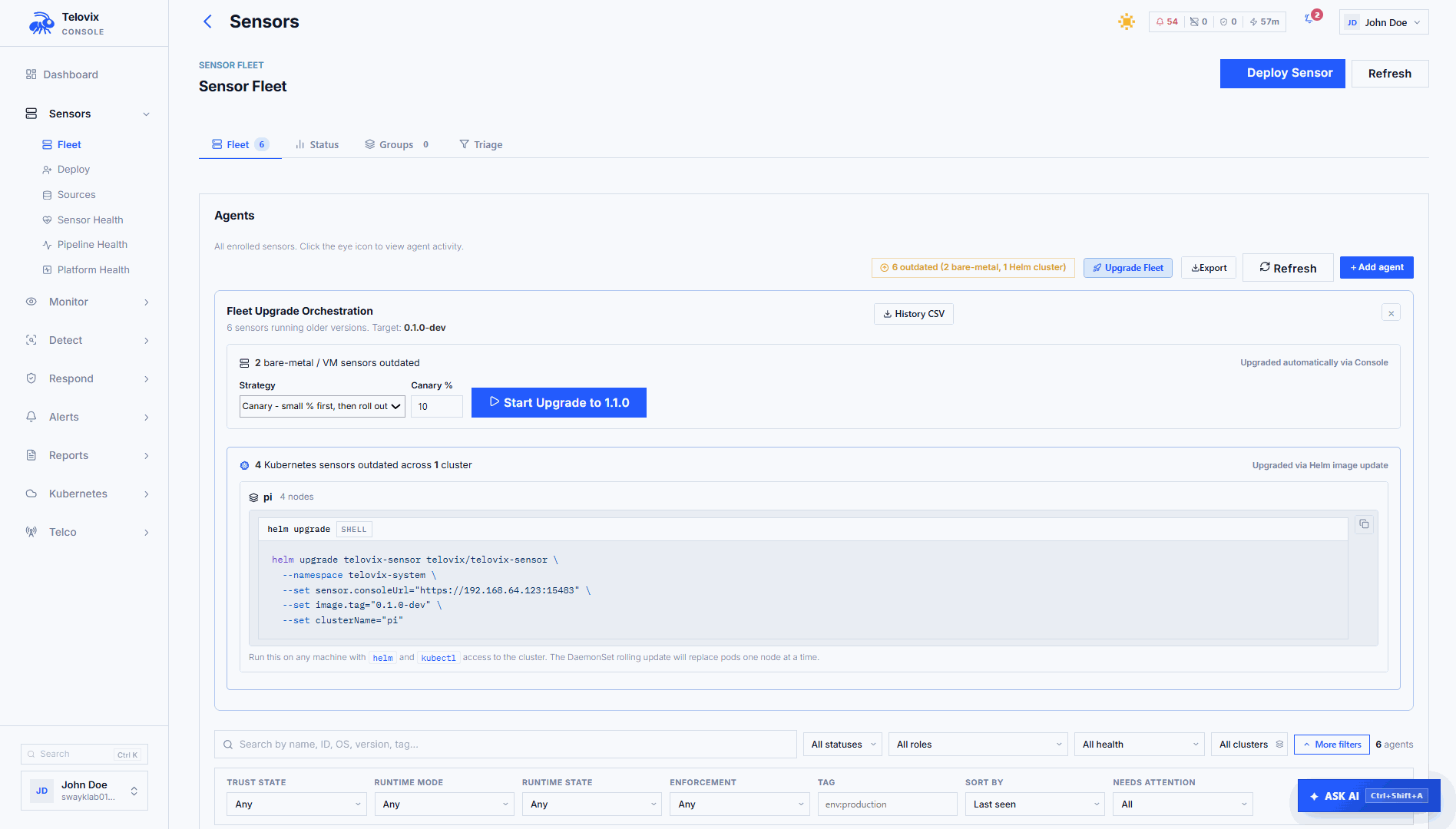
Use Sensors > Fleet > Upgrade Fleet to review the staged sensor release and manage upgrades. The workspace separates Bare metal and Kubernetes deployments.
The Upgrade Fleet tab appears when sensors need an update. Use Manage updates to review setup and history when sensors are already current.
Admin or Operator permission is required to manage upgrades.
Before you start
- Confirm the Target version shown by the Console and read its release notes.
- Check sensor health, connectivity, and available disk space.
- Resolve trust or delivery errors before starting.
- Choose a maintenance window for affected workloads.
- Keep the sensor upgrade separate from kernel, application, and protection-rule changes.
The Console offers its staged release, not an arbitrary version catalog. Automatic upgrades do not provide a downgrade picker.
VM and bare-metal upgrades
Open the Bare metal tab. Review readiness before selecting a strategy.
| Readiness | What to do |
|---|---|
| Ready | The sensor can receive the staged upgrade. |
| Upgrade already planned | Open the existing rollout instead of starting another. |
| Sensor is offline | Restore connectivity and wait for a current report. |
| Matching binary unavailable | Confirm that the Console has the release for this flavor and architecture. |
| One-time sensor update required | Update the older installation manually once, then confirm managed-upgrade support. |
Choose a strategy
| Strategy | Behavior |
|---|---|
| Rolling - health-checked waves | Updates eligible sensors in groups and checks health before continuing. |
| Canary - approve after first group | Updates a first group and waits for Approve Canary before continuing. |
| Immediate - all eligible sensors | Starts all eligible updates without staged groups. |
Use the Canary % setting to choose the initial group size. Rolling is the default.
Review the rollout scope
Start Upgrade to ... targets all eligible non-Kubernetes sensors. Searching or filtering the inventory does not restrict this rollout, and there is no sensor/group picker in the current upgrade form.
Select Start Upgrade to ... after reviewing eligibility, strategy, and impact.
Monitor the rollout
Review the start time, version, progress, and sensor results. Confirm that upgraded sensors reconnect, report the intended version, and resume normal event delivery.
For a canary, also check application health and node resource use before selecting Approve Canary.
Stop rollout stops further updates. It does not downgrade sensors that have already upgraded. Open Recent upgrades to review completed or stopped plans.
Kubernetes and K3s upgrades
Kubernetes sensors are updated through their owning Helm release or GitOps configuration. The Console supports four management options; choose the one that matches how your cluster is managed.
| Option | How updates are applied |
|---|---|
| Helm | Copy a command and run it from a workstation or control-plane node with cluster access. |
| Managed rollout | A cluster-local controller applies Console-requested releases after one-time setup. |
| Flux | Your Git automation updates the release source, then Flux reconciles it. |
| Argo CD | Your Git automation updates the release source, then Argo CD syncs it. |
These Kubernetes workflows use rolling updates. They do not use the Bare metal tab's Canary or Immediate strategies.
Controller setup prerequisites
Managed rollout, Flux, and Argo CD require a cluster-local controller to register with the Console. Before first registration:
- Ensure the release's enrollment Secret contains an unexpired, unrevoked cluster enrollment token for the same
clusterName. An existing sensor can remain connected after its original enrollment token expires; generate a replacement token if needed. - If the Console uses a private certificate authority, create a Secret in the release namespace containing its CA certificate as
ca.crtand setupgradeController.bootstrapCaSecretto that Secret's name. - Confirm the controller can reach the Console over HTTPS.
See Enrollment Tokens for token management. Apply these settings through the owning Git repository for Flux or Argo CD.
Enable managed updates
- Open Kubernetes in Fleet upgrades and find the release.
- Select Update options, then Managed rollout.
- Verify cluster context, release name, namespace, and sensor flavor.
- Run the displayed one-time setup command from your cluster administrator machine.
- Wait for the controller to register and report online.
- Select Start update when the release is ready.
View rollout opens progress for an existing update. Enabling the controller is setup, not confirmation that every sensor has updated.
Flux and Argo CD
- Open Update options and choose Flux or Argo CD.
- Add the displayed controller values to the repository that owns the release.
- Commit that configuration and reconcile Flux or sync Argo CD using the displayed guidance.
- After registration, an Admin opens Configure Git automation.
- Configure the GitHub or GitLab repository, branch, automation endpoint, and token.
- Confirm your repository workflow handles release requests, then enable the integration.
- Use Request release and monitor both the repository workflow and cluster convergence.
Saving Git automation settings does not create the repository workflow for you. Admin setup required means the integration still needs administrative configuration.
Git remains the source of truth. Do not run manual Helm upgrades against a GitOps-owned release.
Manual Helm update
Use the command generated by your Console. It includes the staged release, Console URL, cluster identity, and flavor. Helm 3.14 or newer is required for the generated command.
The following example assumes the release and namespace shown. Replace TARGET_VERSION with the staged release and verify your cluster context first.
TARGET_VERSION='<target-version>'

helm repo update telovix
helm upgrade telovix-sensor telovix/telovix-sensor \
  --namespace telovix-system \
  --version "$TARGET_VERSION" \
  --reset-then-reuse-values \
  --atomic --cleanup-on-fail --timeout 10m --history-max 10 \
  --set-string image.tag="$TARGET_VERSION" \
  --set-string image.digest= --set-string image.telecomDigest= \
  --set-string upgradeController.image.tag="$TARGET_VERSION" \
  --set-string upgradeController.image.digest=
Existing Console URL, cluster, and flavor values are preserved. Prefer the Console-generated command when any of them need to change.
Clearing previous digest overrides matters for a tag-based update: changing a tag alone does not replace an image pinned by digest. Organizations that require digest pinning should use the approved digests for the target release instead.
Verify the workload and Console reports:
kubectl -n telovix-system rollout status daemonset/telovix-sensor
kubectl -n telovix-system get pods -o wide
A successful Helm command is not a substitute for checking each sensor's reported version.
Recovery and older versions
A managed update can recover from a failed startup or rollout. This recovery is not a general-purpose downgrade feature.
- VM or bare metal: inspect the reported update failure and confirm the service recovered. Use the release-specific manual installation procedure if an operator-directed downgrade is required.
- Kubernetes: inspect rollout results. For an intentional return to an earlier release, use your Helm release history or GitOps source and verify compatible chart values and images.
- Ephemeral hosts: update the image or provisioning template, then replace instances through their owning platform.
Do not treat Stop rollout as a command to restore older binaries.
Troubleshooting
| Symptom | What to check |
|---|---|
| Upgrade remains pending | Sensor connectivity, readiness, matching release artifacts, and existing plans. |
| Only setup options appear for Kubernetes | Complete controller setup and wait for registration. |
| Request release is unavailable | Controller health, active rollout, version, and Git automation configuration. |
| Helm completes but the version is unchanged | Pod image, digest overrides, rollout status, and the next sensor report. |
| Recent upgrades shows an old stopped plan | This is rollout history, not an update still running. |
| Sensor fails to reconnect | Read its update result and service or pod logs before expanding the rollout. |