

Email Alerts
The Console sends email notifications for alert rules, trust events, and daily digests. All outbound email uses an SMTP connection configured in Console settings. Without SMTP configured, email delivery does not function and the test endpoint returns a configuration error.
Prerequisites
- Admin access to configure SMTP
- Operator or Admin access to manage alert destinations
- SMTP server credentials and hostname available
- Outbound access from Console host to SMTP server
SMTP configuration
SMTP settings are configured through Console Settings. Changes take effect immediately without a restart.
Updating SMTP settings
In the Console, go to Settings > Infrastructure, find Email (SMTP), and click Configure or Edit. Enter the connection settings:
| Field | Description |
|---|---|
| SMTP server | SMTP hostname, such as smtp.example.com |
| Port | SMTP service port, commonly 587 for STARTTLS or 465 for implicit TLS |
| Username | SMTP authentication username |
| Password | SMTP authentication password |
| From address | Sender email address |
| From name | Sender display name, such as Telovix Console |
| STARTTLS | Upgrade the connection to TLS after connecting |
| SSL/TLS | Establish TLS when the connection opens |
Testing SMTP
From Settings > Infrastructure > Email (SMTP), click Send test email. Confirm that the message arrives before adding operational email destinations.
Alert email destinations
Alert email destinations receive email notifications when alert rules fire. Each destination has its own address, severity threshold, and suppression window.
Create a destination
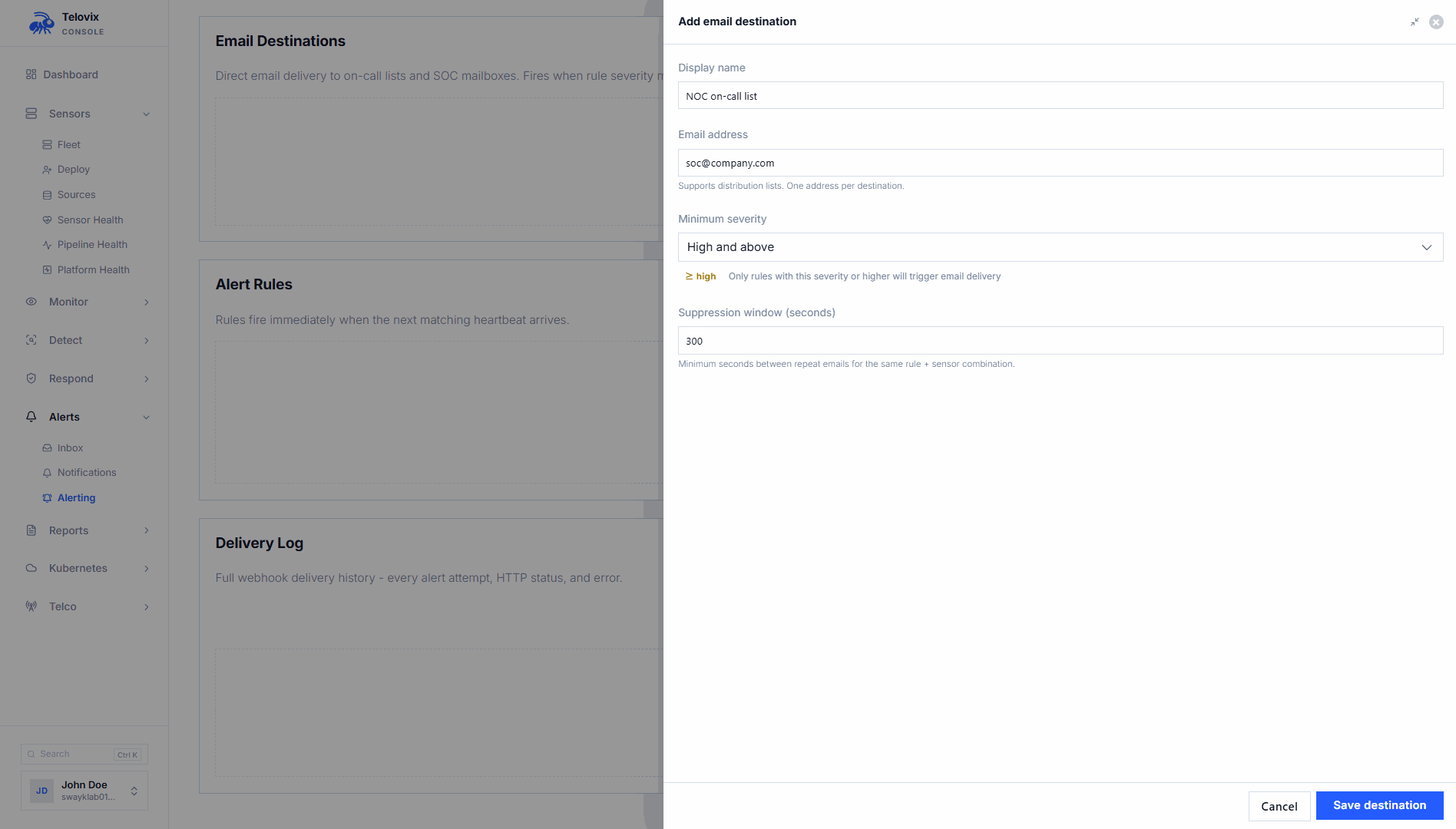
In the Console, go to Alerts > Alert Rules, find Email destinations, and click Add email destination.
| Field | Required | Description |
|---|---|---|
| Display name | Yes | Human-readable label for this destination |
| Recipient | Yes | Recipient email address |
| Severity threshold | No | Lowest alert severity that should trigger delivery |
| Suppression window | No | Minimum interval between repeat deliveries for the same condition |
List, enable, disable, and delete destinations
In Alerts > Alert Rules, each email destination shows its current state and actions to enable, disable, test, edit, or delete it.
Test a destination
In Alerts > Alert Rules, click Test email on the destination. The Console reports whether the test was delivered. SMTP must be configured first.
Suppression window
The suppression window controls how long the Console waits before sending another email to the same destination for the same alert condition. Use it to reduce repeated notifications without suppressing the alert in the Console inbox.
Daily digest
The nightly digest is an opt-in email summary of recent security activity. The Console shows the expected delivery time in Settings > Notifications.
The digest email includes:
- Critical alert count
- High alert count
- Anomaly spike count
- Attack chains opened
- Attack chains closed
- Sensors offline count
Opting in or out
In the Console, open Settings > Notifications and toggle Email me nightly. The option is available when SMTP delivery and an AI provider are configured.
The digest is sent only to users who opt in and only when SMTP and an AI provider are available.
Compliance and report emails
Scheduled compliance reports can be emailed to a list of recipients. This is configured separately from alert email destinations via the report scheduling settings. See Compliance for details on report schedules.
Individual reports can also be emailed on demand from Reports > Compliance Reports. Open the report, choose the email action, enter the recipient address, and send it.
Operational guidance
Configure SMTP before creating email destinations: Always verify SMTP with a test email before using a destination in operational workflows.
Severity threshold and volume: Start with High or Critical and widen the threshold only after confirming that the resulting volume is manageable.
Suppression and missed alerts: The suppression window prevents repeat emails for the same condition but does not drop alerts. Alerts that are suppressed for email delivery still appear in the Console alert inbox. Use the suppression window to control noise rather than as a filter.
TLS settings: Use STARTTLS for servers that upgrade a plain SMTP connection, commonly on port 587. Use SSL/TLS for servers that require TLS immediately, commonly on port 465. Do not enable both modes simultaneously.
Credential rotation: Changes saved under Settings > Infrastructure > Email (SMTP) take effect without a Console restart. Send a test email after rotating credentials.