

RBAC and User Management
The Telovix Console uses a role-based access control system with five roles ordered by tier. Role checks are enforced server-side on every request using minimum-role middleware. Assigning the lowest sufficient role to each team member limits blast radius if an account is compromised and keeps the audit trail clean by preventing high-privilege actions from accounts that should not take them.
Prerequisites
- Console setup complete with at least one admin account
adminrole to create users or change roles
Role tiers
| Role | Tier | String value | What it controls |
|---|---|---|---|
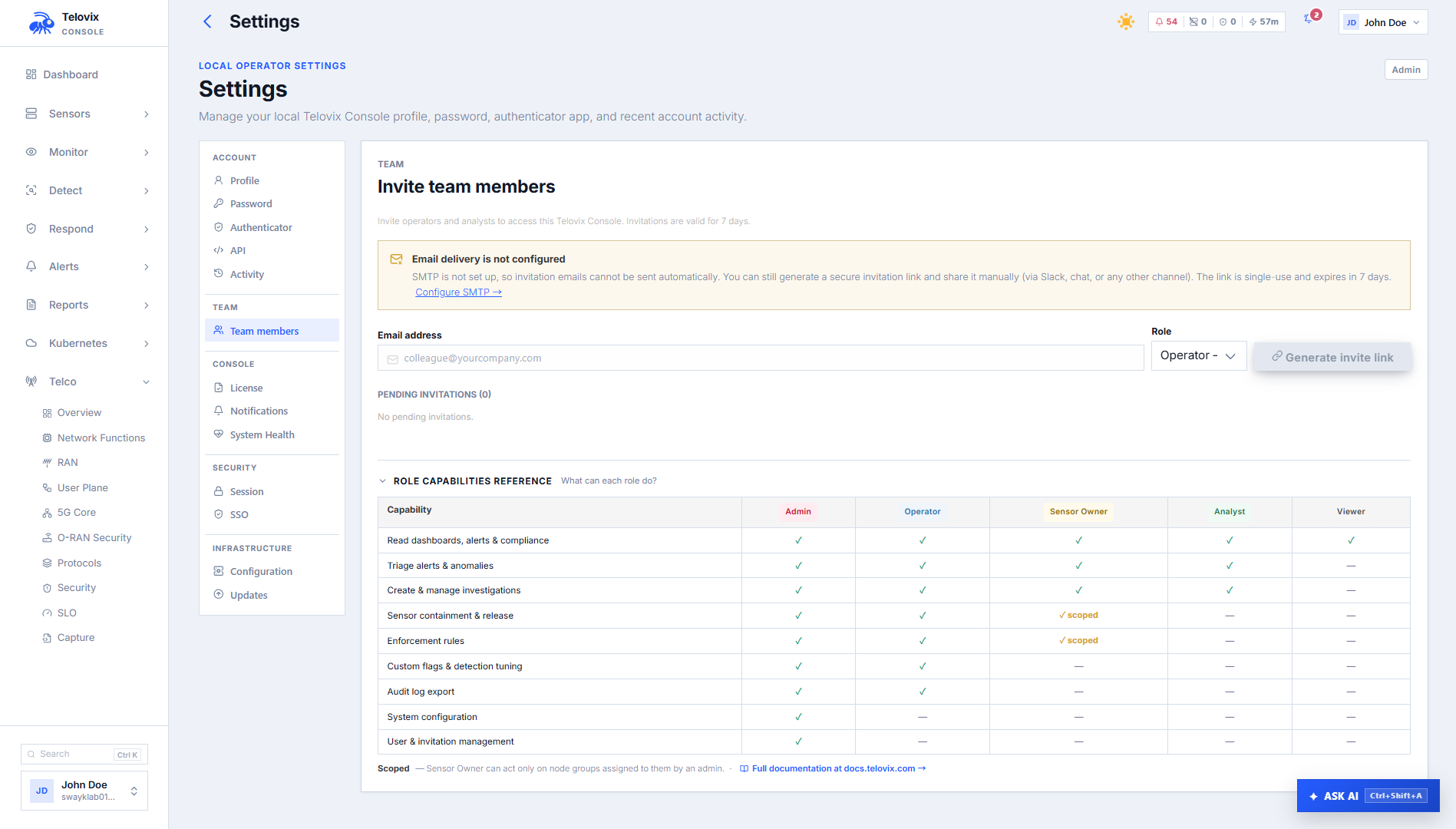
viewer | 1 | viewer | Read-only access to dashboards, fleet state, compliance posture, and reports |
analyst | 2 | analyst | All viewer access plus alert triage, investigations, event queries, and anomaly review |
sensor_owner | 3 | sensor_owner | All analyst access plus management of sensors within assigned node groups only |
operator | 3 | operator | All analyst access plus pack assignment, enforcement changes, containment, and exercise creation |
admin | 4 | admin | Full access including user management, SSO configuration, license import, and global settings |
The tier ordering is Admin(4) > Operator(3) = SensorOwner(3) > Analyst(2) > Viewer(1). Access checks use a minimum-tier comparison: a route requiring operator accepts any role at tier 3 or above.
sensor_owner and operator share tier 3 but differ in scope. An operator can act on any sensor in the fleet. A sensor_owner can only act on sensors in the node groups assigned to their account. Scope enforcement is applied separately from tier enforcement.
Creating the first admin user
The first admin account is created during the Console setup wizard. This bootstrap step can only run once. The bootstrap account receives the admin role automatically.
After bootstrap, all other accounts are created by invitation or by an admin directly.
Managing users
Inviting a user
Requires admin role.
In the Console, navigate to Settings > Team members. Enter the email address, select a role, then choose Send invitation email. If email delivery is not configured, choose Generate invite link and share the link through an approved channel. The invitation is time-limited; when the recipient accepts it, the Console creates the account with the selected role.
Listing users
In the Console, navigate to Settings > Team members. The page lists Console users with their email, display name, role, and status.
Changing a user's role
Requires admin role. The bootstrap admin's role cannot be changed.
In Settings > Team members, edit the user, select the new role, and save the change.
Disabling and enabling a user
Requires admin role.
In Settings > Team members, use the action on the user row to disable or enable the account. Disabling a user invalidates active sessions and prevents new sign-ins without deleting the account or its audit history.
Listing and revoking invitations
In Settings > Team members, review pending invitations and use the row actions to resend or revoke an invitation.
Sensor scope for sensor_owner
The sensor_owner role restricts a user to sensors in specific node groups. Scope assignment requires admin role.
In Settings > Team members, edit the user with the sensor_owner role and assign the required Sensor groups. Remove a group when the user should no longer manage its Sensors.
A sensor_owner with no group scope assigned can see no sensors. A sensor_owner with multiple group scope assignments can see and manage sensors in all assigned groups.
Cluster scope for Kubernetes deployments is managed from the same user detail page under the Cluster Scope tab. Changes to cluster scope are recorded in the audit log as console_user_cluster_scope_updated.
MFA (TOTP)
Password-enabled users can enable authenticator-based MFA on their accounts. SSO-only users manage MFA at their identity provider; the Console authenticator does not add another prompt to the provider's sign-in flow.
In the Console, navigate to Settings > Authenticator and click Add authenticator. Scan the QR code with your authenticator app, then enter a six-digit code to confirm enrollment.
To disable MFA, return to Settings > Authenticator and click Disable. Provide your current password and a valid authenticator code to confirm.
MFA enable and disable events are recorded in the audit log as mfa_enabled and mfa_disabled.
SSO (OIDC)
The Console supports OpenID Connect (OIDC) for single sign-on through Okta, Microsoft Entra ID, Google Workspace, and generic OIDC providers. SSO configuration requires the admin role.
In the Console, navigate to Settings > SSO. From this page you can view the current configuration, configure a provider, and remove an existing configuration. After saving a provider, sign out and verify that the provider appears on the sign-in page before relying on SSO for administrator access.
After a user's first SSO sign-in, review the account in Settings > Team members and assign the required role and Sensor or cluster scope.
API keys
API keys provide programmatic access without using a session cookie. They are created by authenticated users and scoped to specific operations.
In the Console, navigate to Settings > API. This page lists API keys for the signed-in user. Click New API Key, enter a label, select the required scopes and expiry, then create the key. Copy the secret immediately because it is shown only once.
To revoke an API key, click the trash icon next to it on the API Keys page.
API key creation and revocation are recorded in the audit log.
What each role can do: practical reference
| Action | viewer | analyst | sensor_owner | operator | admin |
|---|---|---|---|---|---|
| View fleet, events, dashboards | Yes | Yes | Yes (scoped) | Yes | Yes |
| Triage and investigate alerts | No | Yes | Yes (scoped) | Yes | Yes |
| Query runtime events | No | Yes | Yes (scoped) | Yes | Yes |
| Change enforcement state | No | No | No | Yes | Yes |
| Create / run threat exercises | No | No | No | Yes | Yes |
| Contain / release sensors | No | No | No | Yes | Yes |
| Create / delete enrollment tokens | No | No | No | Yes | Yes |
| Manage sensor groups | No | No | No | Yes | Yes |
| Import license bundle | No | No | No | No | Yes |
| Create / disable / role-change users | No | No | No | No | Yes |
| Configure SSO | No | No | No | No | Yes |
| Manage API keys (own) | No | No | No | Yes | Yes |
Audit coverage for user management
All user management actions are recorded in the audit log. Key action types:
console_user_created,invitation_created,invitation_acceptedconsole_user_role_updated,console_user_disabled,console_user_enabledconsole_user_group_scope_assigned,console_user_group_scope_removedlogin,logout,password_change,mfa_enabled,mfa_disabledsso_login,sso_login_failed,sso_user_created,sso_config_updated
Export user-management activity from Reports > Audit Log. Apply the user-management action filter, click Export, and choose CSV for spreadsheet-compatible output.
Operational guidance
Keep admin accounts to a minimum: The admin role can change other users' roles, import licenses, configure SSO, and globally modify all sensor settings. Limit it to the people who genuinely need all of that. Use operator for day-to-day fleet management.
Use sensor_owner for field teams: Teams responsible for specific sites or clusters can be given sensor_owner scope limited to their node groups. This gives them operational capability without fleet-wide visibility.
Disable rather than delete: Disabling a user preserves their audit history and allows re-enablement. If you delete a user record, their audit entries lose actor association. Use disable for departing users unless permanent removal is a compliance requirement.
SSO group-to-role mapping: If your identity provider supports group claims, configure role mapping in the SSO settings so users receive the correct role automatically at first login rather than defaulting to viewer and requiring manual assignment.