

Sensor Enrollment Tokens
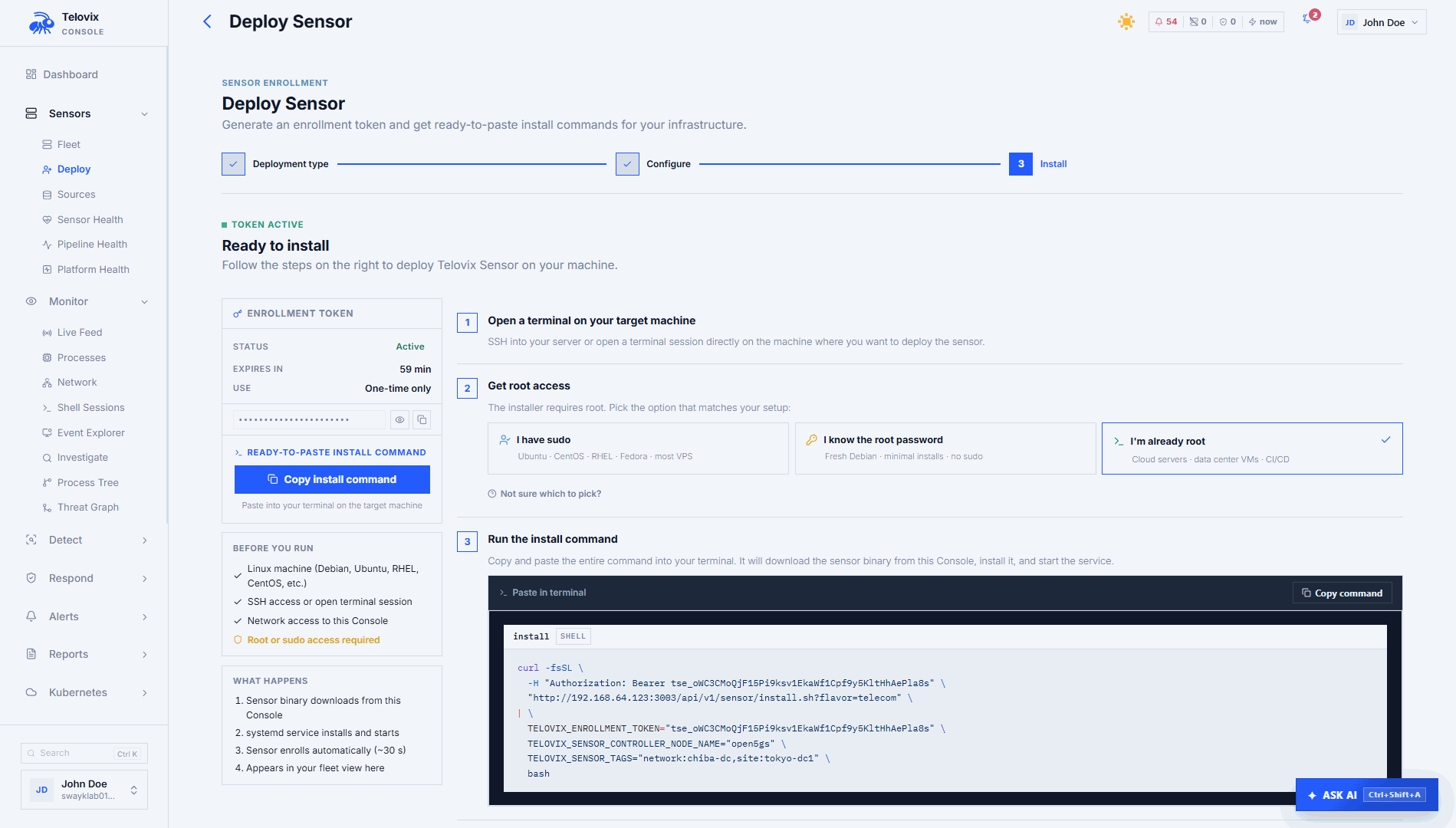
Enrollment tokens authorize a new Sensor to request its identity from the Console. Admin and Operator roles can create deployment tokens from Sensors > Deploy.
Choose the correct token
| Token | Deployment | Default validity | Use |
|---|---|---|---|
| One-time | VM or bare metal | 15 minutes | One persistent host |
| Cluster | Kubernetes or K3s | 365 days | Nodes belonging to one named cluster |
| Fleet | Ephemeral or autoscaled hosts | 365 days | Instances created from one protected template |
| Re-enrollment | Existing VM or bare-metal Sensor | Short-lived | Replace credentials while preserving Sensor identity |
Do not use a one-time token in Kubernetes or autoscaling templates. It is consumed by the first host and later instances cannot enroll.
Create a token
- Open Sensors > Deploy.
- Select the deployment type.
- Enter the node, cluster, or fleet information.
- Choose the Sensor flavor and tags.
- Generate the deployment instructions.
- Copy the command or template immediately.
The Console shows the usable token only as part of the generated deployment flow. Treat it as a credential.
Cluster tokens
A cluster token is bound to the cluster name selected in the wizard. Use one stable cluster name for the life of that cluster. Store the token in a Kubernetes Secret and reference the Secret from Helm.
Create a separate token for each cluster. This allows one cluster to be revoked without interrupting others.
Fleet tokens
Use one fleet token per autoscaling boundary, such as an environment, cloud account, region, or node group. Combine it with unique per-instance node names.
Rotate the template and token when ownership changes or when the credential may have been exposed.
Revoke a token
Open the enrollment-token list in the Sensor deployment workspace and revoke the token. Revocation prevents future enrollment. Sensors that already enrolled keep their issued identity until they are revoked or decommissioned separately.
Before revoking a reusable token, confirm every active launch template or Helm release has been updated.
Re-enrollment
Use the Sensor-specific re-enrollment action when an existing persistent host needs new credentials. This preserves its Console identity and history.
An ordinary one-time token creates a new enrollment and should not be used when identity continuity is required.
Capacity behavior
Creating a token does not reserve licensed node capacity. Capacity is checked when Sensors enroll. If the protected-node limit is reached, new enrollment is rejected until capacity is available or the license is updated.
Security practices
- Never store a token in source control.
- Avoid command logging and shared shell history.
- Use Kubernetes Secrets or a cloud secret mechanism for reusable tokens.
- Create separate reusable tokens for separate trust boundaries.
- Revoke unused and exposed tokens promptly.
- Review token creation and revocation in the Audit Log.
- Keep system clocks synchronized so validity checks are reliable.
Troubleshooting
| Symptom | Check |
|---|---|
| Token expired | Generate a new deployment command. |
| Token already used | One-time tokens cannot enroll a second host. |
| Kubernetes node is rejected | Confirm the Helm cluster name matches the cluster token. |
| Autoscaled instance cannot enroll | Confirm the fleet token remains active and the template injects it correctly. |
| Node limit reached | Remove retired Sensors or update licensed capacity. |
| Re-enrollment creates a duplicate | Use the Sensor-specific re-enrollment action instead of a normal token. |